
Building & managing your menu
The Menu screen is your catalog of dishes -- names, prices, categories and dietary type. Build it fast from a photo (AI scan) or add items by hand.
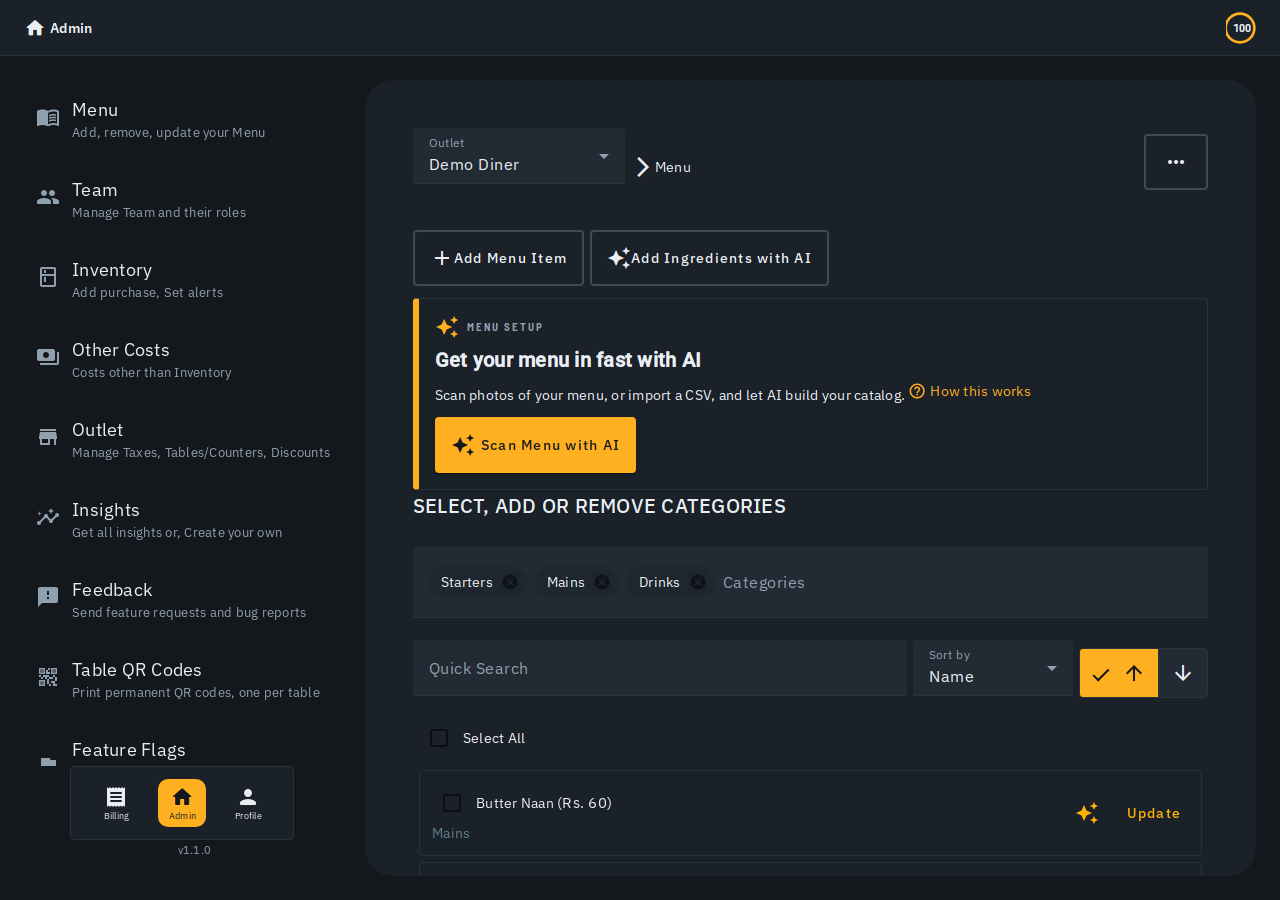
In a hurry to get a printed menu in? Start with Set up your menu from a photo, then come back here to fine-tune.
Adding an item by hand
- On Menu, tap Add Menu Item.
- Fill in Menu Name, Price, a Photo (take a photo, upload one, or generate one with AI -- saving it makes it visible to customers immediately), Category (pick or type a new one), and Menu Type -- Biller's built-in dietary types (Veg / Egg / Non-Veg) drive the veg/non-veg/egg indicator, so there's no separate switch to keep in sync. Using a custom Menu Type instead (e.g. "Starters")? Biller fills in the veg/non-veg/egg badge from the dish name when it can (e.g. "Chicken 65" -> non-veg).
- Leave Description blank and Biller writes one with AI on save, or write your own.
- Tap Add.
To change an item later, tap Update on its row.
Does this price already include GST?
Under Advanced details, the Price includes GST toggle tells Biller whether the price you typed already has tax baked in (common when you priced a dish "GST-inclusive" from the start) or whether tax should be added on top at billing, as usual. New outlets price items exclusive of GST by default, so tax is added on top at billing until you switch the toggle on. Nothing about your existing prices changes unless you flip the toggle yourself.
Marking a dish out of stock
The Out of stock screen (left rail) lets any staff role search a dish and flip its on means available switch mid-service -- it dims and shows an Out of stock tag rather than vanishing. The item editor has the same toggle. (Linked to inventory? Biller can flip it automatically -- see Inventory & stock.)
A Kitchen team member sees an edit (pencil) icon on each row here -- tapping it opens a small sheet to fix the dish's name, description, photo, or category. Price and tax never appear, since kitchen can't change those.
Categories and menu types
- Categories group dishes and double as a filter -- tap a chip to show just that category, tap again (or its ✕) to clear it.
- Add a category on the fly while adding an item, or manage/rename/delete from Manage.
- Menu Types are managed from their own sheet (New Menu type → name + icon); the built-in dietary types drive the veg/non-veg badge.
Working through a big menu
- Quick Search and Sort by to navigate a large list.
- Select All (or tick items) for bulk Edit (change price, category, menu type or tax for them all -- a blank field keeps each item's own value), Delete, or the AI actions below scoped to your selection.
- AI tools gathers menu-wide actions: Upload Photo (AI scan, which also takes a CSV), Add missing ingredients, Add missing images, and Add missing descriptions -- each only counts items actually missing that thing.
The ingredient and photo AI actions cost 1 Biller credit per item. A photo correction (regenerating a photo with your own feedback) costs 2 credits per photo. See Biller credits & pricing.
A photo run publishes each photo as soon as it is made. If you do not like the result, tap Undo N photos on the run banner (or in the run view on a phone) to take those photos off again -- photos you changed yourself are left alone. The bar at the top of the Menu screen and the Running & recent view show the run's progress dish by dish, and the same bar and view hold paid ingredient suggestions as Ready to review until you add or discard them.
Applying a single AI photo from a dish's Edit form shows Photo applied -- customers see it now with Undo, puts you back in the Edit form with the photo filled, and the dish page's Photo tile shows the new picture.
Linking ingredients (optional)
The item editor's Inventory Details section links a dish to inventory items and amounts so completing a bill deducts stock automatically. See Inventory & stock. A dish with none linked yet shows an Ingredients pending tag on its row in the list -- tap Update to add them by hand or with AI.
Guided tour
The first time you open this page, a short guided tour walks through the basics. Restart it any time from the "..." menu's Show walkthrough.
A dish's own page
The Revenue figure is the money its bills actually took in the last 7 or 30 days (after any bill discount), so changing the price later does not rewrite past sales. Food cost shows a dash until the dish is linked to ingredients that all have a price. In a restaurant, Tax rate shows the GST rate your bills charge every dish until you confirm one for the dish itself.
What Biller doesn't do (today)
- No separate item-code/SKU field -- items are found by name.
- No per-item time-of-day availability schedule, just Out of Stock on/off.
More in the in-app help assistant
Bulk-editing tips, AI photo regeneration notes, and menu-type conflict handling are all covered by the in-app help assistant.