
Set up your menu from a photo (AI scan)
Biller can read your paper menu straight from a photo, PDF, CSV or Word file -- no manual typing. Add any number of pages, let AI extract the items, then review and correct anything before it becomes your real menu.
Scanning your menu
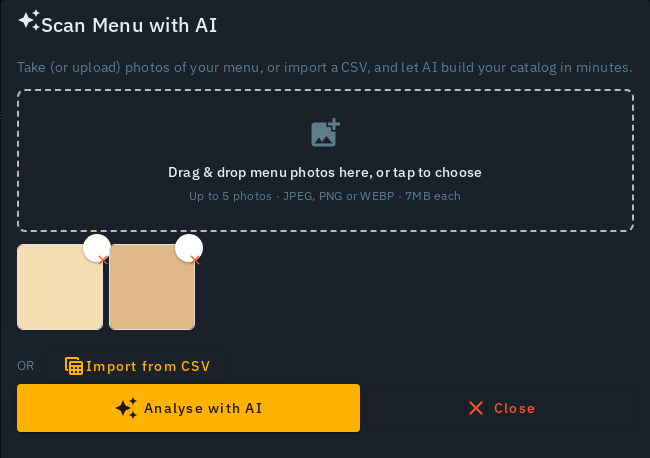
- On the Menu page tap Upload Photo (next to Add Menu Item); the Scan Menu with AI sheet opens on Add your menu from a photo or a file. In setup the same dropzone sits on the Menu step.
- Tap Camera to take a photo, or Upload for photos, PDF, CSV or a Word file -- any number of pages, all in one picker (on a wide screen, drop the files onto the dropzone). A CSV goes through this same picker; there is no separate import button. Already have a bill you gave a customer? Tap "Or upload a bill you gave a customer" and it reads the items off that instead.
- Items appear below as each page is read -- there's no separate "Analyse" tap and no page-count limit. The scan keeps running on Biller's servers even if you close the tab or lose connection; reopening the page resumes right where it left off, even if it finished while you were away. "+ Add pages" stays available after the scan finishes. Closing the results without saving asks you first, so scanned items are never lost silently.
Reviewing what AI found
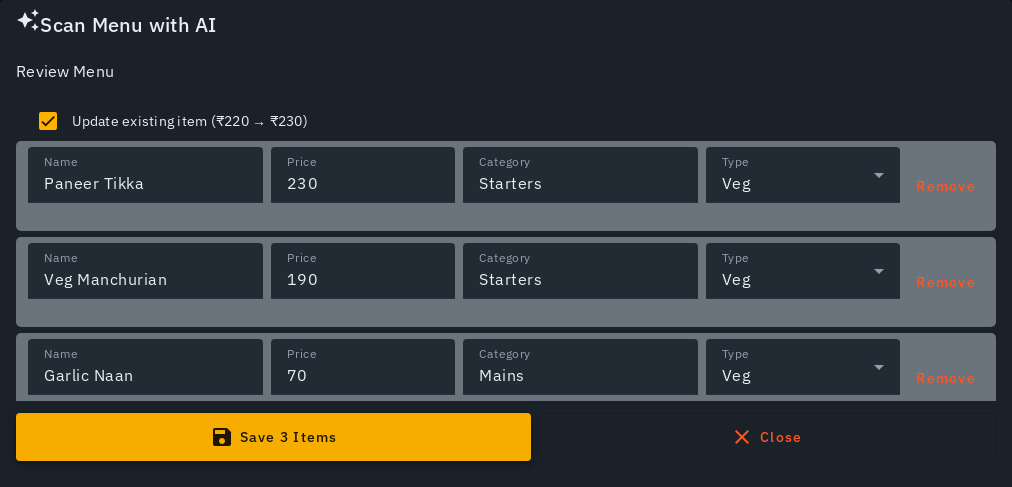
- Each scanned dish appears as a tile with its name and price. A dish that needs a decision carries a small chip instead of a full form: "English name?" for a non-Latin printed name, or "Exists · old price → new price" when it matches something already on your menu. Tap the chip to fix it inline.
- "Check N" opens the full review table as a sheet for bulk edits (name/price/category/veg-non-veg, and Remove) when you want to review everything at once instead of tile by tile.
- Tick Also add ingredients with AI to run that flow automatically right after saving (see Add ingredients with AI) -- off by default.
- Tap Save (or Add, if adding to an existing menu).
Tips
- Nothing touches your live menu until you tap Save/Add.
- Well-lit, straight-on photos extract more accurately -- retake a messy scan rather than fighting the review table.
- If the camera is off for Biller, the dropzone tells you plainly and offers uploading from your gallery or typing the items in instead -- on the app, it also offers Open Settings to turn the camera back on. Scanning is also rate-limited per outlet; the error tells you how long to wait.
- The billing screen's dish search matches every saved language, and each tile shows the English name alongside a non-Latin one.
- New outlets start with sample dishes (Chicken Briyani, Rice, Burger, Mix Veg Curry, Punjabi Samosa) so the app isn't empty -- saving your first real scanned/CSV menu clears them out automatically, with a "Removed N example dishes" confirmation. Once you've edited anything yourself, nothing is auto-removed.