
Inventory & stock
Biller's Inventory tracks the raw stock behind your dishes. Once your menu items are linked to ingredients, stock comes down on its own every time a bill is completed. Admins and Godown Managers have full access; a Manager can view stock, the reorder list and the forecasts but not change anything; cashiers, waiters and kitchen staff don't see it (see Adding team members).
Add an inventory item
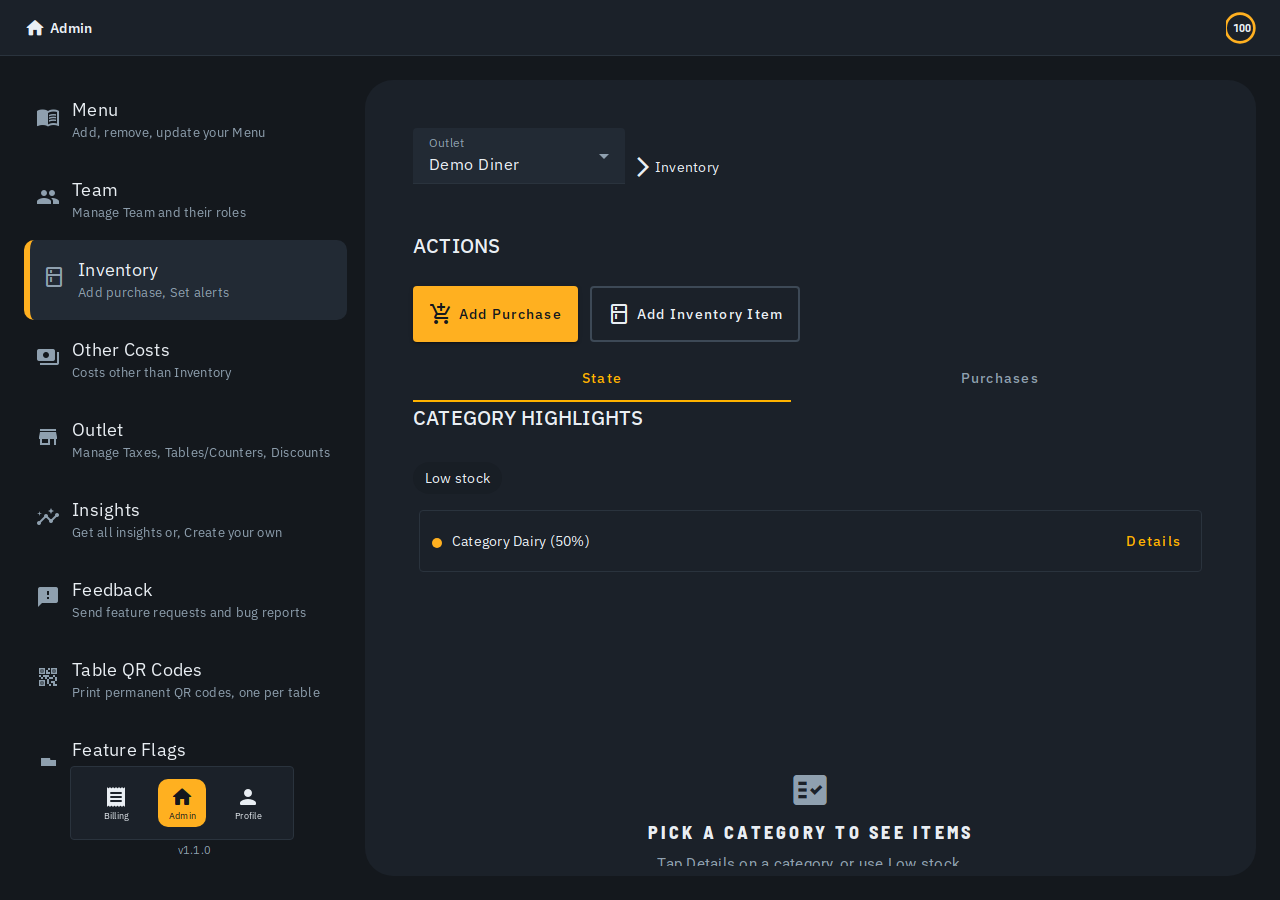
- Open Inventory from the admin side bar, then tap Add Inventory Item.
- Fill in New Inventory Name, Unit (Kg, Grams, Litre, ml or Piece), Current Amount, Stock Space (your target/full level) and Notify at (the low-stock threshold). Category, icon and shelf life are optional.
- Tap Save.
Categories aren't limited to food ingredients -- add a Packaging category (unit: Piece) to track takeaway boxes, bags and other delivery materials the same way, with the same low-stock alerts and reorder list. Deducting packaging automatically per order isn't available yet; count is manual for now.
Log a purchase (adding stock)
- Tap Add Purchase.
- Fill in Purchase Date, Item Name, Vendor Name, Units and Price. Add Another Purchase logs several lines at once.
- Tap Save -- stock goes up immediately.
Under the lines, Paid says how you paid for this purchase: Paid today (the default), Paid on... (pick a day between the purchase date and today) or Not paid yet. It applies to every line of that save. On the Purchases tab an unpaid line shows Not paid with the days since you bought it, and a Mark paid button (the day defaults to today). A paid line shows Paid and the day. Purchases saved before this existed show no payment line, and Biller never counts them as unpaid. Only an Admin or Godown Manager can mark a purchase paid; your CA sees the dates and cannot change them.
Prefer not to type it by hand? Tap Scan Receipt to upload a photo of a supplier's purchase receipt -- AI drafts the purchase lines for you to review before saving.
The Purchases tab shows each line with its unit, for example "2 kg Potato". A purchase dated earlier than today never moves the restock date of stock you already bought later, so Expiry review only flags stock that is really old.
Link ingredients to a dish
- Open a menu item's editor (Menu → Update on the item).
- Under Inventory Details, use the Inventory Item autocomplete and Units to add each ingredient and its amount.
Prefer not to type every recipe by hand? See Add ingredients with AI.
What happens automatically
- Completing a bill subtracts each linked ingredient's recipe amount for every dish sold. Reversing a completed bill restores it.
- When a linked ingredient hits zero, any dish that needs it is automatically marked Out of Stock. Turning it back on is manual, so Biller never silently re-enables a dish.
- Admins get a push notification when an item drops to its Notify at level, plus a daily and weekly inventory summary.
Correcting a count
Did a stock-take and the numbers don't match? Tap Correct on an item and enter the actual amount on the shelf -- it's treated as an absolute recount, not an adjustment, and every correction is recorded. The sheet closes by itself once the count is saved.
Guided tour
The first time you open this page, a short guided tour walks through the basics. Restart it any time from the "..." menu's Show walkthrough.
More in the in-app help assistant
The Inventory page also has weekly reorder/buy-forecast reports, a depletion projection ("which items run out when"), expiry review (a write-off asks you to confirm the amount first), seasonal buying hints, a supplier book with purchase orders, and unit conversion -- ask the in-app help assistant for any of these, or see Add ingredients with AI.
On a supplier, the switch Registered small business (Udyam) is off until you turn it on, and a supplier with it on shows a small Udyam chip. Bills to a registered small business count as your expense this year only if paid within 45 days, so Biller uses the switch, together with the Not paid yet purchases, to show Supplier bills over 45 days on the Reports Summary.