arrow_backHelp

How automatic inventory management works, end to end

Biller.app doesn't have one "turn on automatic inventory" switch — it's a short chain of steps, most of them AI-assisted and all of them reviewed by you before anything saves. This page walks through the whole chain in order, so you know what to expect at each stage and where you still make a call. For the full mechanics of any single step, this page links out to its dedicated guide rather than repeating it.

The chain, in one picture

  1. Scan your menu — dishes get created (name, price, category). No ingredients yet.
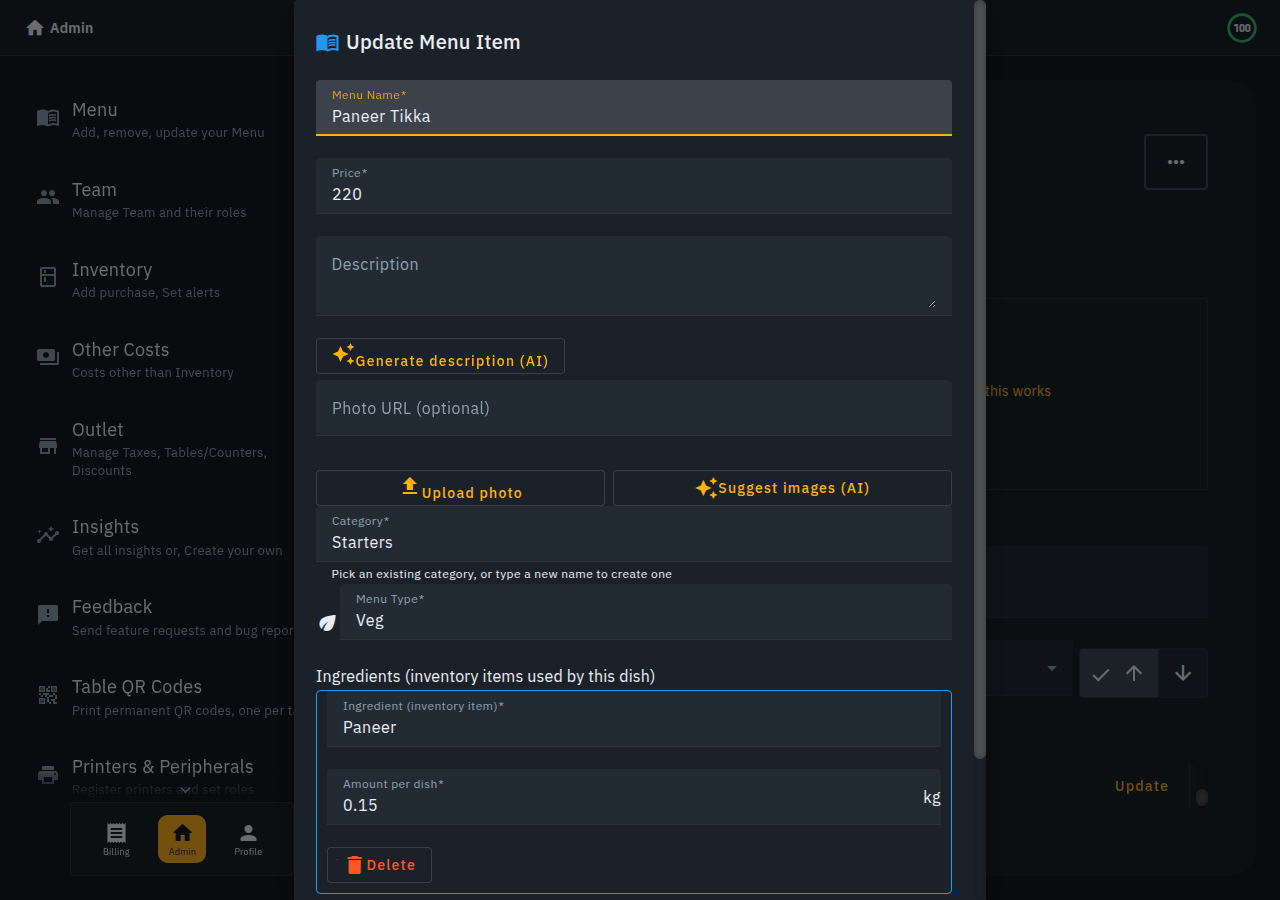
  2. Add Ingredients with AI — a separate step. AI suggests each dish's ingredients, with amounts and units already filled in; accepting a suggestion creates the matching inventory item and links it to the dish in the same tap.
  3. Confirm the real count — the one manual step. A brand-new ingredient starts with an AI-guessed, clamped, non-zero estimate (badged "Estimated — tap to correct"), and you tell Biller.app what you actually have on the shelf.
  4. Sell it — completing a bill automatically subtracts what was used. No extra tap here at all; it rides on the same "Complete" action your staff already do.

A Biller.app menu item's edit screen showing Paneer Tikka linked to its ingredient, Paneer, at 0.15 kg per dish

Step 1: Scanning your menu creates dishes, not ingredients

Photographing your printed menu (or importing a CSV) gets your dishes in fast, but it's worth being precise about what it does and doesn't do: it extracts name, price, category and veg/non-veg type — nothing about ingredients or stock. That's a deliberate boundary, not a gap to be fixed later: menu extraction stays "read-only" with respect to your inventory, so a misread photo can never quietly change your stock counts.

Full guide: Set up your menu from a photo (AI scan).

Step 2: Add Ingredients with AI is where the recipe gets built

This is a separate button on the Menu screen, and it's the step that actually turns dishes into recipes. AI proposes each dish's ingredients — name, amount, unit — so you're not looking up "how much oil does a Chicken 65 use" and typing it in by hand. You review every suggestion (edit an amount, remove a row that doesn't belong, or skip a dish entirely) before anything saves.

A few things worth knowing going in:

  • Accepting a suggestion does double duty. If the ingredient doesn't exist in your inventory yet, it's created and linked to the dish in the same tap — you never have to go create an inventory item first.
  • New ingredients start with an AI-guessed estimate, not zero. AI can tell you a dish uses paneer and takes a rough guess at how much you're likely to have — but it has no way to actually see your fridge, so the item is clearly badged "Estimated — tap to correct" until you confirm it.

Full guide: Add ingredients with AI.

Step 3: Confirming the real count is the one manual step

Everything up to here can be AI-assisted. Turning an AI-guessed estimate into a real, trustworthy count is not — it's a deliberate, manual step. You have two ways to do it: Inventory → Add Purchase → fill in date, item, vendor, units, price → Save, or tap the "Estimated — tap to correct" badge directly on the item and enter what's actually on the shelf. Either one clears the estimate badge for good.

Biller.app's Inventory State tab showing Paneer at 10 out of 20 kg after one logged purchase

This is the honest asterisk on "automatic inventory": the AI's starting number is a clamped, non-zero guess meant to get you closer than a blank zero — it is never a substitute for you confirming the real count. If you're demoing or testing the automation, this is the step to remember — an ingredient showing the Estimated badge isn't broken, it's just waiting for its first logged purchase (or a manual Correct) to become an owner-confirmed number.

Full guide: Inventory & stock — see "Logging purchases (adding stock)."

Step 4: Selling it is where deduction is genuinely automatic

Once a dish is linked to its ingredients, completing a bill automatically subtracts what was used — recipe amount times quantity sold, with zero extra taps for the person running the register. This is the one part of the chain that's fully hands-off, every time, forever, once steps 1–3 are done for a dish.

The same Inventory screen after completing a bill for 2 Paneer Tikka, with Paneer stock automatically reduced from 10 kg to 9.7 kg

A few behaviors worth knowing:

  • Uses delivered quantity when it's lower than ordered — if a table only actually received 1 of 2 ordered plates, only 1 plate's worth of ingredients comes off stock.
  • Never double-deducts. A bill is only ever deducted once, no matter how many times it's reopened or reloaded.
  • Cancelling restores it. Reversing a completed bill puts back the exact amounts that were taken off.
  • Running out disables the dish. When a linked ingredient hits zero, any dish that needs it is automatically marked Out of Stock. Turning it back on is deliberately manual — Biller.app won't assume you've restocked until you confirm it.

Full guide: Inventory & stock — see "Stock comes down when a bill is completed."

What's still manual, on purpose

  • Two separate AI steps (menu scan, then ingredient suggestion), both reviewed by you — nothing saves without your say-so.
  • The first CONFIRMED stock number always comes from a human (Add Purchase or Correct) — AI can propose a starting estimate, but it can't see your fridge.
  • Spice ingredients are excluded from AI suggestions and stay manually tracked.
  • No supplier/purchase-order workflow — a vendor is just a remembered name on a purchase.
  • No wastage log beyond expiry write-offs; use Correct for spoilage unrelated to shelf life.
  • No cross-family unit conversion (mass and volume don't auto-convert into each other) — Biller.app converts grams to kilograms for you, but won't invent a kg-to-ml conversion without a density figure nobody has entered.

See also