
The kitchen ticket wall (KDS)
Biller's kitchen display is an on-screen wall, not a printout -- tickets appear automatically the moment a bill is sent to the kitchen, and update live as things change.
Two views: the kitchen board and the ticket wall
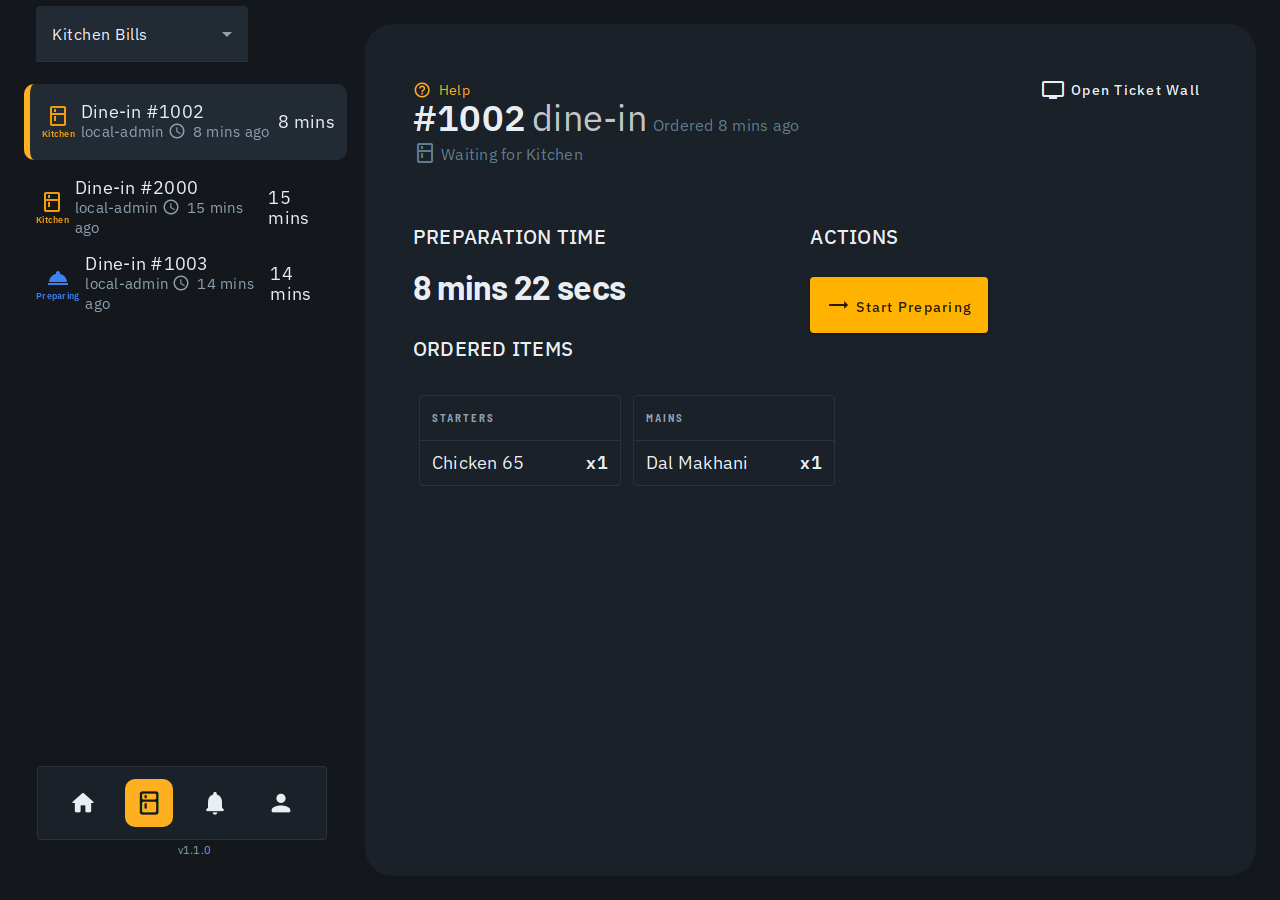
- Kitchen board (the everyday working view) shows one selected ticket at a time, grouped by category, with a preparation timer and an action button to advance it.
- If a table sends items more than once, both views group items under ROUND 1, ROUND 2, etc., oldest first. A single-round ticket shows no headers.
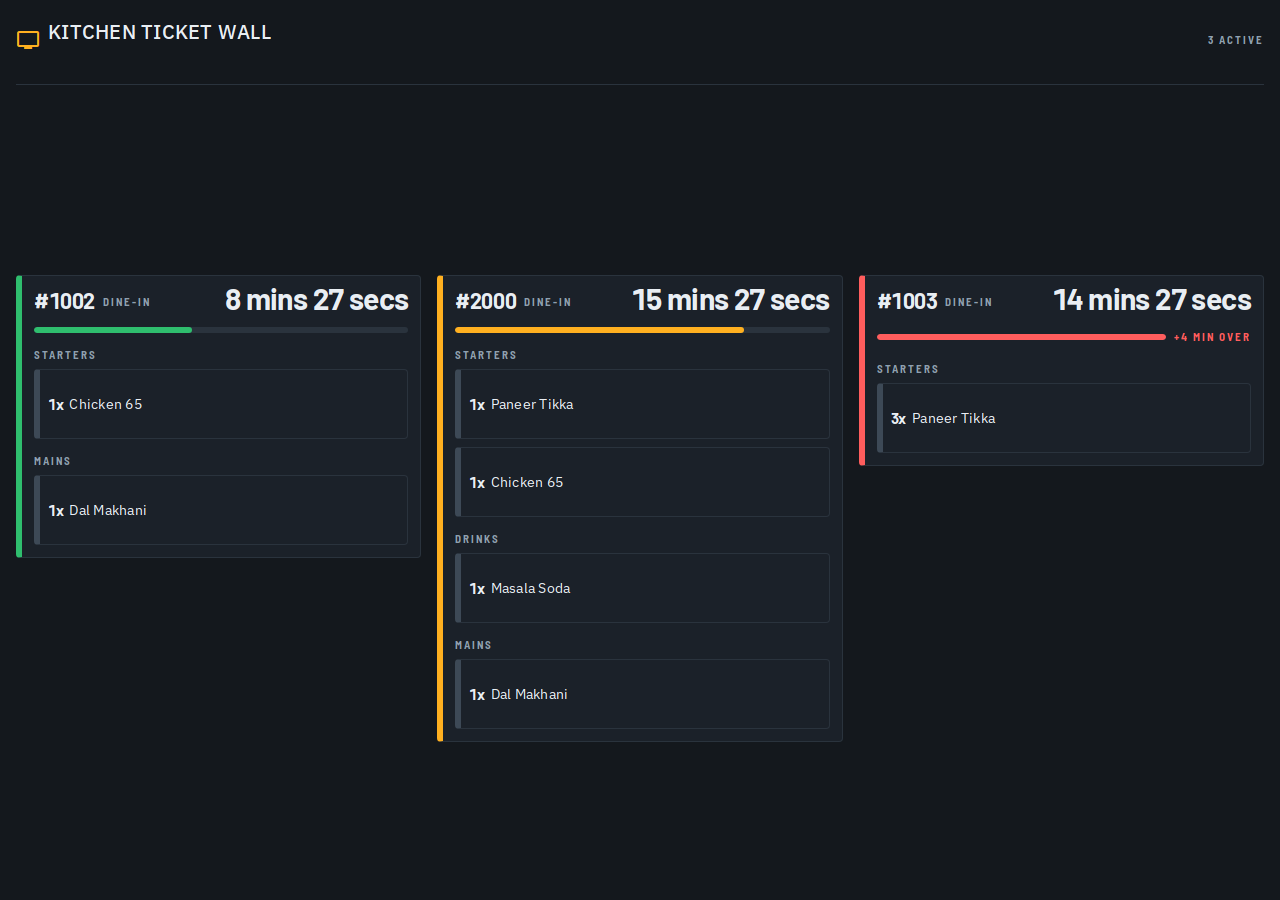
- Ticket wall ("wall mode") is a full-screen, read-only grid of every active ticket at once -- built for a mounted kitchen TV. Tap Open Ticket Wall on the kitchen board to open it.
Reading a ticket
Each ticket shows its table/counter, items (grouped by category), and how long it's been sitting: a colored age band (green, amber, red) escalates with a "+N min over" count once past its target prep time. A Ready ticket switches to its own badge instead of continuing to escalate.
Cancelled items and per-item status
If a waiter/cashier cancels an item after it's been sent to you (a void, no cost -- or waste, once prep started), it stays on the ticket, struck through with a VOID/WASTE tag you can tap for the reason, rather than disappearing. If every item on a ticket is cancelled, it shows "No items on this ticket" and its action button disables. The kitchen board also shows each live item's own status tag (Sent / Preparing / Ready).
When a whole bill is cancelled
If a bill is cancelled after it was sent to the kitchen, its ticket stays on the wall and the kitchen board for 60 seconds: dimmed, items struck through, with a red CANCELLED tag, the reason and a "gone in N s" count. It is not counted in "active". Tap it to clear it sooner. Every wall device shows the same thing.
Multiple kitchen stations
Most kitchens run one wall/board and see everything. If your outlet has more than one kitchen printer (a grill station and a bar printer, say), opening the ticket wall on a new screen asks which station it is -- it remembers your choice on that device. Tap the station name at the top to switch it, or switch to All stations.
Marking a ticket ready
The ticket wall is display-only. To advance a ticket, use the kitchen board: select it and tap its action button (Start Preparing, then Mark Ready, then Delivered from the Bills screen) -- a large, full-width tap zone built for a gloved or wet hand at a busy pass.
A table bill the cashier finishes while the kitchen is still cooking stays on the wall and the board until every dish is ready, for up to 6 hours.
Tips
- The wall refreshes live -- no manual refresh needed.
- The ticket wall and a printed KOT are independent ways to reach the kitchen, not a sequence -- most outlets without a mounted screen use a printed KOT instead of (or alongside) the wall. See Printing your bills.
- The wall is meant to stay open on a dedicated screen -- it has none of the app's usual side-bar/header chrome. See Setting up a kitchen display for keeping it open on a mounted TV or tablet.