
Printing your bills
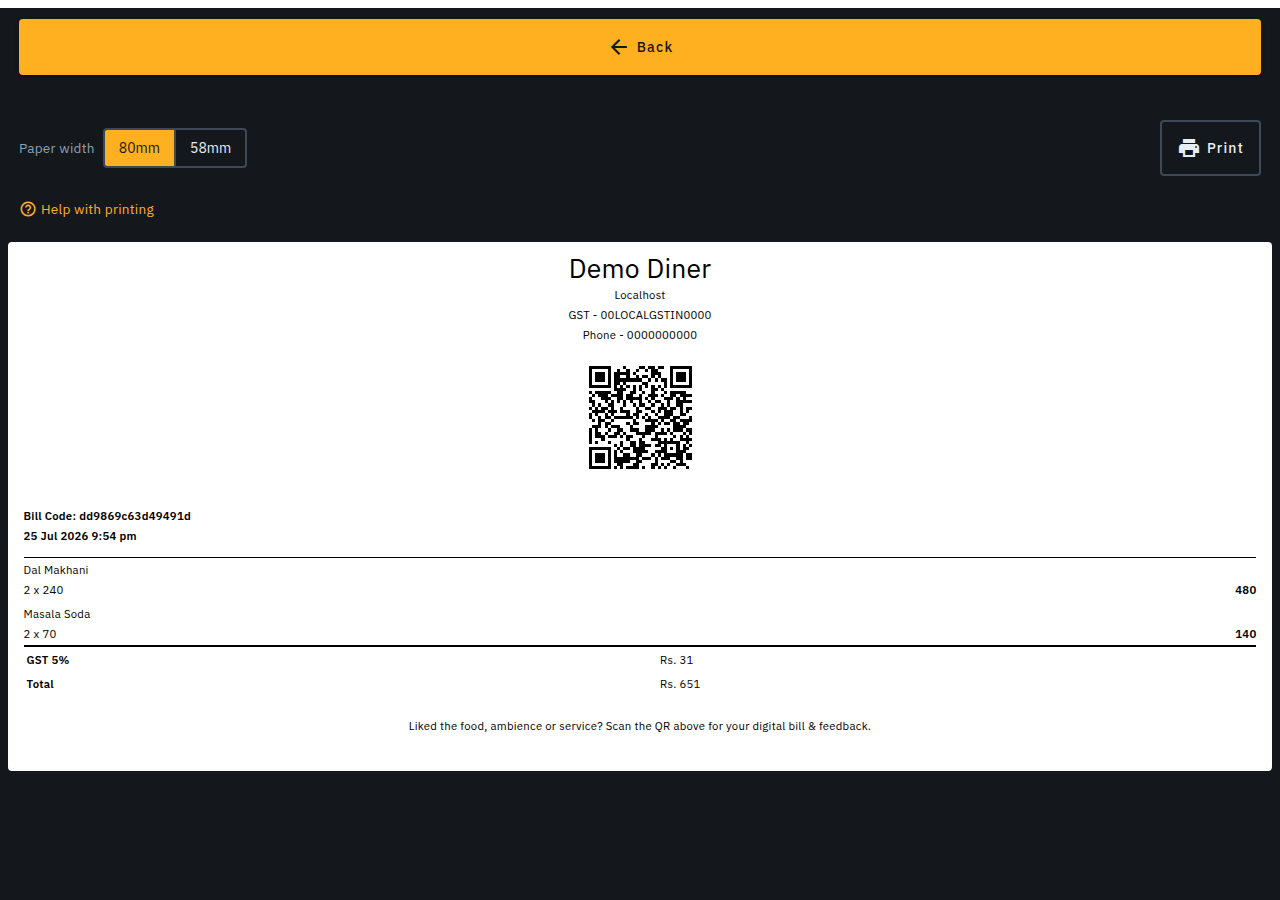
Biller prints the customer receipt as a proper thermal receipt, sized for the 80mm or 58mm paper roll your printer takes. Have a regular office/inkjet printer instead? Switch the paper width toggle to A4 and the receipt lays out as the same A4 Tax Invoice (or Bill of Supply) you can download as a PDF or email -- one document, whichever way you look at it -- with your outlet's logo at the top if you've uploaded one under Outlet > Update Profile, and every rupee figure printed with a real ₹ sign, not "Rs.".
What you see is what prints
The 80mm / 58mm / A4 switch shows exactly what will come out of the printer for that paper -- the roll preview is decoded from the very same bytes the printer receives, and the A4 preview is the very same layout the downloaded PDF paints. If a line is on the screen, it prints; nothing is drawn twice from two different sources. Print follows the paper you're currently looking at: with a receipt printer registered for that width, tap Print and that's the printer it uses; with none registered, Print falls back to A4 (an office/inkjet printer or "Save as PDF"). The finished bill, the Admin -> Printers preview and the customer's own print page all share this one switch.
Print prints right on the finished bill: your print dialog opens over the screen you're on, with no new tab, and it prints the paper you picked on the switch -- an 80mm or 58mm roll comes out as one page of that width, and A4 as one A4 sheet. Trying Biller before you sign up? The Tax invoice button there opens the same paper with a choice of Print, PDF or WhatsApp, and the button names exactly what it will do.
Checking what a bill will look like, before you print anything
Outlet > Taxes & charges shows a What your bill prints card, and the same preview appears when you add/update a tax -- a real receipt/invoice built from your current settings, with its own A4 / 80mm / 58mm switcher above it. This is a PREVIEW only, for checking the shape of a bill before you commit a tax change -- it doesn't print anything and is separate from the paper width toggle on a real bill's print page (below), which controls what actually comes out of your printer.
UPI payment QR on printed bills
Add your outlet's UPI ID under Outlet > Profile and a printed bill shows a QR the customer can scan to pay you directly, pre-filled with the bill's total. Leave the UPI ID blank and no QR prints at all.
The QR disappears once you've been paid. Complete a bill as cash,
card or UPI and any reprint comes out without it. A bill completed
as Due (khata) keeps its QR, since nothing's been collected yet -- the
same QR also shows on the customer's own hosted bill page
(.../customer/bills) so they can settle up without you reprinting anything.
Printing on a desktop, with a USB thermal printer
- Install the printer through your OS's normal printer setup -- Biller prints through your OS's print dialog, it doesn't talk to the printer directly.
- Open the bill's print page and set the paper width toggle to match your printer (80mm or 58mm roll, or A4 for a regular office printer) -- remembered per device.
- Tap Print, then choose your thermal printer in the browser's print dialog.
Printing on a phone
In Biller's native Android app, tapping Print opens your phone's own print dialog -- pick any printer your phone already has set up (a WiFi/cloud printer, "Save as PDF", or anything with a matching print service installed) the same way printing from any other app works.
For a Bluetooth thermal printer, the native app can also pair and print to it directly -- no browser or bridge app needed. On Admin -> Printers, add a printer with connection type Bluetooth, then use the scan screen to find and pair it; that same printer then prints from the app going forward.
Need the customer's completed bill as an actual PDF file to save or share? Open the bill's ⋮ menu, choose Tax Invoice, then tap Download PDF -- one tap, no print dialog. It works the same on desktop and the Android app.
Prefer a bridge app instead, or printing from your phone's browser? Install RawBT (or a similar bridge app) from the Play Store and pair it with your Bluetooth/USB printer, then open the bill's print page in your phone's browser, set the paper width, and tap Print via RawBT -- a button that appears next to Print on an Android phone's browser tab and sends the receipt straight to RawBT, no share sheet needed.
No printer handy?
- Email -- sent automatically when you mark a bill Complete, if you captured the customer's email, with the receipt attached as a PDF. (SMS receipts are temporarily unavailable -- see Bill credits.)
- QR code -- the Show QR sheet lets the customer scan to view/forward their bill.
- WhatsApp -- the Show QR sheet's Send on WhatsApp button sends the bill link directly.
- Download PDF on the customer's own bill page -- every hosted bill link
(
.../customer/bills?code=...) carries a Download PDF button, so a customer can save their own receipt without asking you for anything.
Automatic printing over your network
Biller can print the receipt and kitchen tickets (KOT) automatically to a network (WiFi/LAN) printer -- no browser dialog needed. See Printers & printing setup to add one. Resending a dish after bumping its quantity prints only the extra amount (e.g. +2 Paneer Tikka), not the whole order again.
A Quick bill with kitchen (the default dine-in flow) prints a compact KOT for a single-station kitchen. An Advanced-flow bill (kitchen-board or delivery/aggregator setup) prints large, bold text with each item's menu category, for reading across a busy kitchen rail; a table's later order rounds print under Wave 2, Wave 3, etc. For a delivery/aggregator order, enter the runner's pickup code in Add details > Delivery OTP -- it prints on both the KOT and receipt.
Print from the cloud -- Biller.app
Biller's hosted service can't reach a printer on your outlet's own network directly. Run Biller.app on any always-on machine on that network (a spare PC or Raspberry Pi) to bridge the gap -- no inbound firewall rules needed.
- Go to Admin -> Printers & Peripherals, tap Connect a computer, then Show a pairing code for a short-lived 6-digit code.
- Install Biller.app (see Install Biller.app on your computer) and type the code into its first screen.
- Leave it running -- it reconnects automatically and the status card shows it printing once connected.
You can pair more than one computer to the same outlet -- each shows as its own line, and pairing another one doesn't disconnect the first. Unpair one from its own line's menu, without affecting the others. This works alongside direct network printing, which still applies unchanged for a self-hosted install already on the same network as its printers.
Inside the Biller.app window on the PC the printer is connected to, bills go straight to that PC's printers, so they still print when the internet is down. Bluetooth printers on a phone, and printers on another PC, print through the Biller server and need the internet. Setting up a printer needs the internet the first time.