
Setting up a kitchen display
This article is about getting the ticket wall (Biller's full-screen kitchen display) open and staying open on a TV or tablet mounted in your kitchen. For what the wall actually shows once it's open, see the kitchen ticket wall (KDS) help article instead.
Two ways to open it
- From any device already signed into Biller: open the switch mode menu (the same one used to jump between Cashier/Kitchen) and tap Kitchen wall (TV display). It opens straight into wall mode.
- From the kitchen board: tap Open Ticket Wall above a selected ticket -- it opens the wall in a new tab, so you don't lose your place.
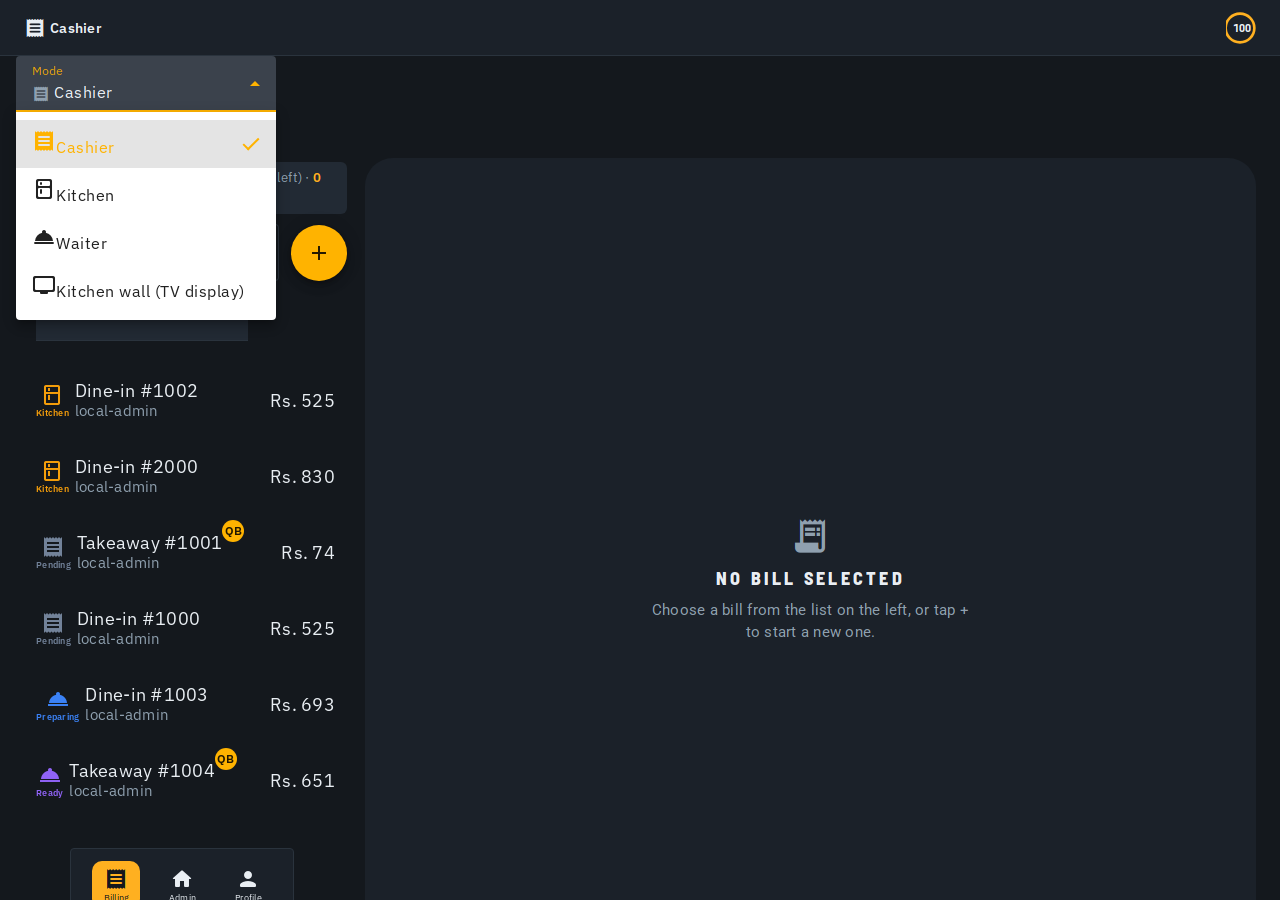
Either way, the wall is a normal page at its own web address --
/app/kitchen-wall -- so you can also type or bookmark that address
directly on the TV/tablet's own browser.
Setting it up on a mounted TV or tablet
- On the tablet (or a laptop/mini-PC connected to the TV), sign in to Biller with any team member's account for your outlet.
- Open the wall using either method above, or navigate straight to
/app/kitchen-wall. - Add it to the home screen so it opens full-screen without the
browser's own address bar/tabs, and survives a reboot:
- Android (Chrome): the browser menu (⋮) → Add to Home screen.
- iOS/iPadOS (Safari): the Share icon → Add to Home Screen. Launch it from that home-screen icon from now on.
- Leave it open. The wall refreshes itself live over the same real-time connection as the rest of the app -- no need to ever manually reload it.
Who can open it
Any team member signed in to your outlet can open the wall -- Admin, Cashier, Waiter and Kitchen accounts all work, the same as any other page. There's nothing to separately enable or approve.
Tips
- The wall is read-only -- there's no tap-to-advance action on it. Tickets are still moved forward from the interactive kitchen board (select a ticket, tap Mark Ready).
- One mounted display is all you need for a single-kitchen outlet. Running more than one kitchen printer? Each display picks its own station the first time it opens the wall and remembers it after that -- see the kitchen ticket wall (KDS) article.
- If the display ever shows a stale/blank screen after a long time mounted, relaunch it from the home-screen icon -- it reconnects and loads the current ticket list fresh.