
GST billing
If your outlet is GST-registered, Biller puts your GSTIN and an itemised tax breakup on every bill. You set which GST components apply and at what percentage; Biller applies and totals them for you.
Biller can suggest a tax rate and HSN code for each menu item, but you review and confirm every one; it does not generate e-invoices/IRNs or file your returns -- that stays your (or your accountant's) call. It does export your figures in the GST portal's own table shapes -- see Tax reports.
Just need a one-off GST invoice, no outlet setup? See the free GST Invoice Generator. Just need to add or remove GST from an amount? See the free GST Calculator.
1. Put your GSTIN on your bills
Go to Outlet → Profile, fill in GSTIN, and set GST Registration to Regular (Tax Invoice with tax lines), Composition scheme, or Not registered (both: Bill of Supply, no tax lines -- see below).
2. Set up CGST/SGST as taxes
Go to Outlet → Taxes & Charges → New Tax or Charge, pick your GST rate from the Tax type dropdown -- scoped to your outlet's own business type and named after the business it's for (e.g. "Restaurant & food service -- GST 5%" for a typical same-state food bill, or "Standard goods -- GST 18%" for retail) -- and Biller adds the correct CGST + SGST pair for you, or a single IGST line if you picked the "Delivering to another state" option, at the right percentage split. The two rows show up as ONE card named by the combined rate (e.g. "GST 5%"), with a "Prints on the bill as" panel showing the real CGST/SGST lines that print and file separately. See Taxes & charges.
3. Apply them to the right tables/counters
Each table/counter has its own list of which taxes apply -- add CGST/SGST to every one that should carry them (or mark them Default so new tables/counters pick them up automatically).
4. It totals on every bill
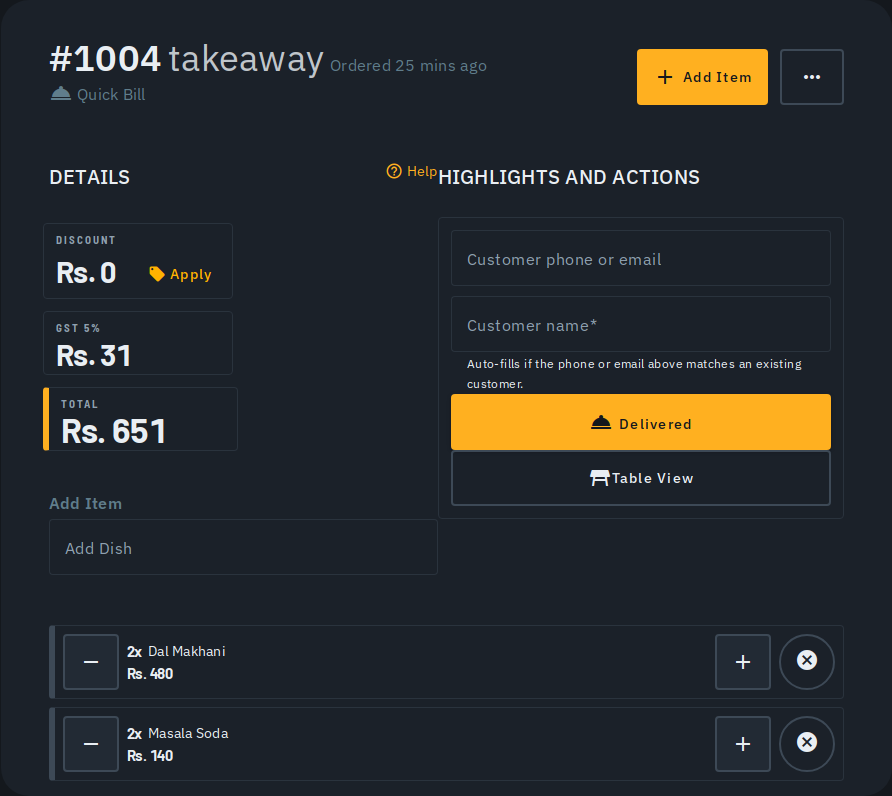
The bill's Details panel shows one line per tax and a live grand total as you add items. See Making a bill.
5. Print or email a GST Tax Invoice
Once a bill is completed, open its ⋮ menu and choose Tax Invoice for a compliance-ready document with your GSTIN, invoice number and a full per-item tax breakup. Tap Download PDF to save/share the file directly (works the same on desktop and the Android app -- no print dialog needed), Print for the OS print dialog, or Email to customer to send it directly. The invoice number is assigned automatically in sequence when the bill completes. The downloaded/emailed PDF prints ₹ in full (not "Rs."), plus place of supply and, for a Delivery bill, the delivery address; a bill of ₹50,000 or more with no customer GSTIN asks for the customer's name and address too, printing either in red if left blank, as GST law requires.
6. On the composition scheme, or not registered? Biller issues a Bill of Supply
Set GST Registration to Composition scheme or Not registered and every new bill from then on is a Bill of Supply instead -- no tax lines, its own numbering, and the declaration printed on it. Switching the setting never changes a bill that already exists.
Priced with GST already included?
A menu item's price can be exclusive of tax (Biller adds GST on top at billing) or inclusive (the sticker price already has tax in it, and Biller works the tax back out so the customer's total still matches what's on your menu). The How you price card under Outlet › Taxes & charges sets which one a NEW item starts as; flip Price includes GST on any individual item in the menu editor to override it for that one. Changing the outlet-wide default only affects items you add from now on -- it never re-prices an item you already have, and the card names how many existing items are priced the other way with a link to review them. See Building & managing your menu.
The printed receipt (thermal, on-screen and emailed) marks such a line (incl.) and prints its tax-excluded value, not the sticker price, so the items and tax line always add up to the total shown.
Tips
- Change a rate once in Taxes & Charges and it applies to every new bill it's attached to. Editing a row created from a GST preset reopens it pre-selected on that same preset, and switching its rate updates the existing CGST/SGST (or IGST) rows in place rather than adding a new one.
- On a GST-inclusive priced item, the bill's on-screen figures show their exact paise (never rounded to the nearest rupee), matching the printed tax invoice exactly.
- A GST rate picked from the Tax type dropdown is always named and split
correctly, so it's always picked up by the GST reports. If you have an
older, custom-named tax line from before this dropdown existed, keep its
name recognisable (
CGST,SGST,IGST 18%, or a combinedGST 5%) or it's reported as a non-GST charge instead -- ask the in-app help assistant if a charge isn't showing up in your reports, or for HSN/SAC code setup.