 ILLER
ILLERHelp
Taxes & charges
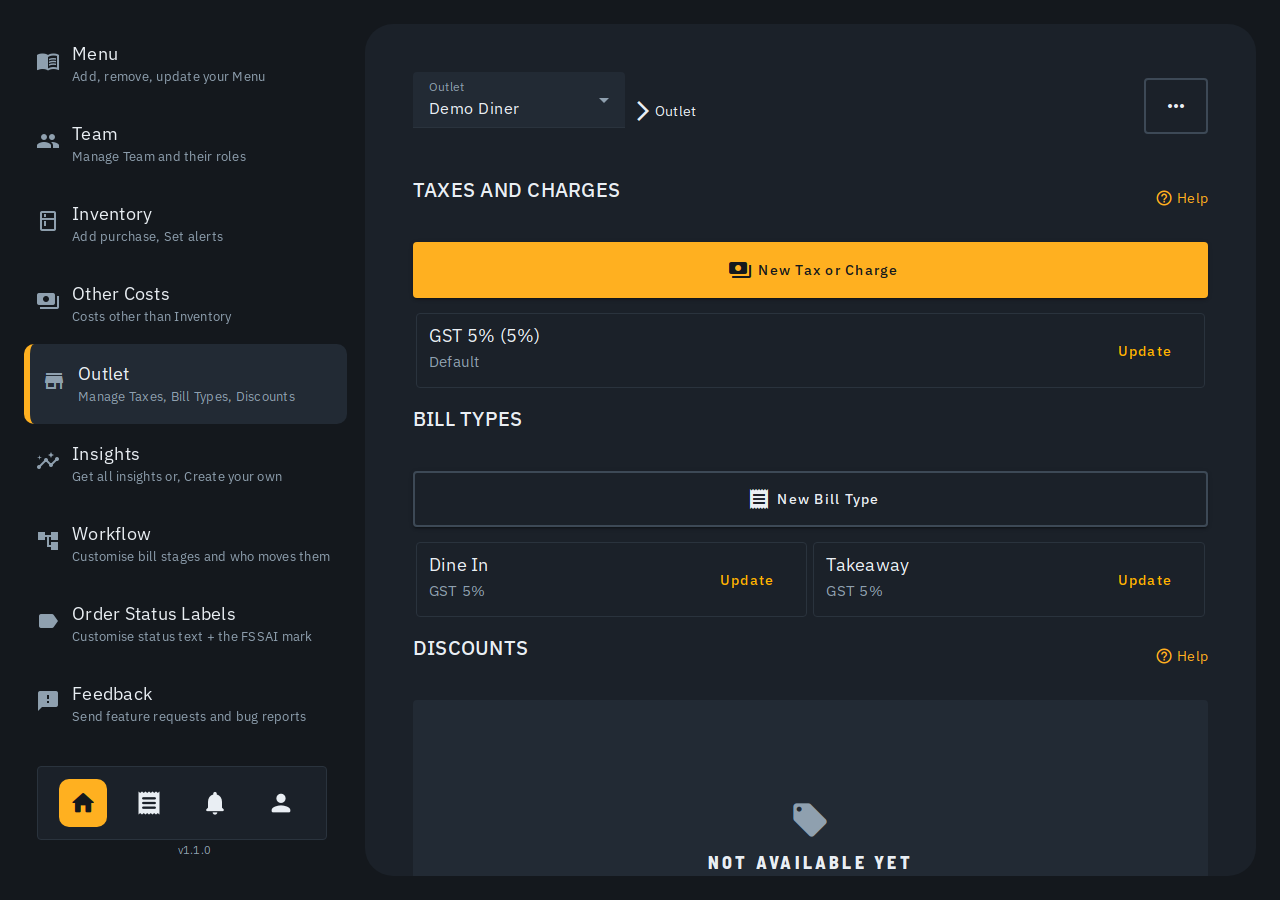
Biller keeps taxes and charges as two separate steps: first you build a catalog of taxes/charges for your outlet, then you pick which of those apply to each table/counter.
Adding a tax or charge to your outlet
- Go to Outlet in the admin side bar.
- Under Moving charges, tap New Tax or Charge.
- Fill in:
- Tax Name -- e.g. "SGST", "CGST", "Service Charge".
- Tax Percentage -- e.g.
5for 5%. - Default -- toggle this on if new tables/counters should have this tax/charge applied automatically.
- Tap Add.
Each tax/charge you add appears as a card under Moving charges, showing its name and percentage. Tap Update on a card to change its percentage or default flag, or to delete it.
Choosing which taxes apply to a table/counter
Taxes and charges aren't automatically applied everywhere -- each table/counter (e.g. "Dine In", "Takeaway") has its own list of which taxes/charges apply to it.
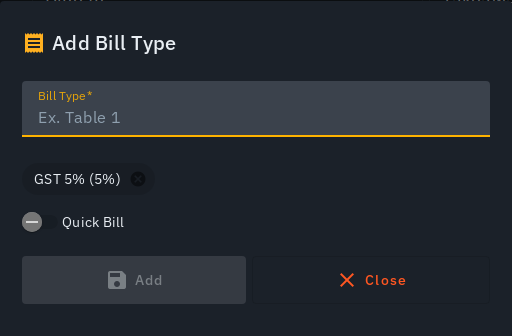
- Under Table Organisation, tap New Table/Counter (or Update on an existing one).
- Set the table/counter's name.
- Use the tax field to search and add taxes/charges -- each one you pick shows up as a removable chip. New tables/counters start out with whichever taxes/charges are marked Default already applied; add or remove chips from there.
- Toggle Quick Bill on if this table/counter should be offered as a one-tap quick-bill option.
- Tap Add (or Update) to save.
Tips
- A tax/charge has to exist in the outlet's catalog before it can be added to a table/counter -- add it under Moving charges first.
- Deleting a tax that's still applied to a table/counter is blocked -- remove it from any tables/counters using it first.
- There's no per-table override for taxes/charges today -- they're set at the table/counter level only. Per-table charge overrides aren't live yet.