
Tables & QR codes
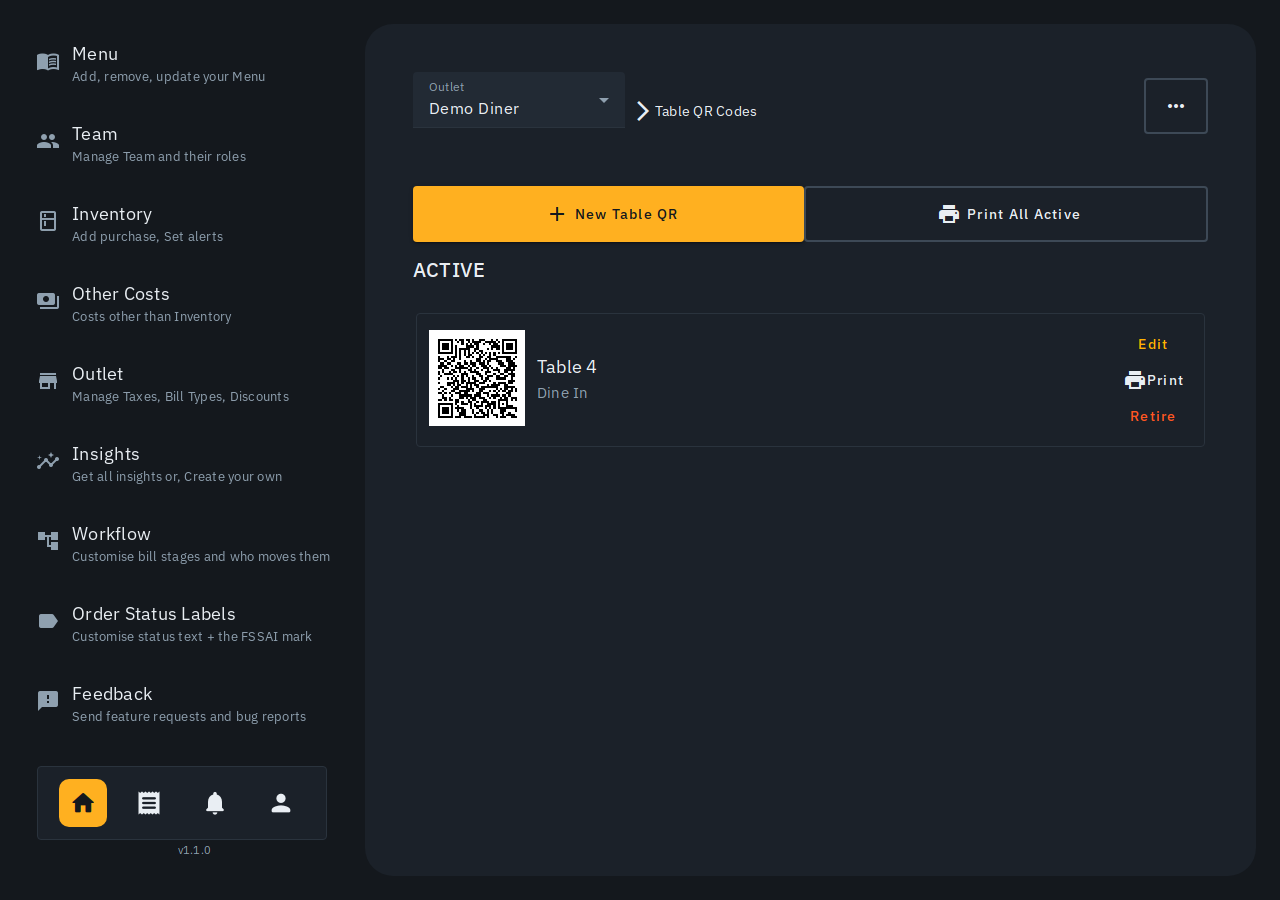
A table (or counter -- takeaway, pickup, delivery) is what you bill under; a table QR code is an optional permanent sticker for one physical table, printed once and stuck down. Each table and its QR live on one row: tap Manage tables on the Tables screen, or go to Outlet then Tables & QR codes in the admin side bar.
Adding, renaming, removing or reordering a table
Tap New table/counter to add one. In the Add Table/Counter sheet, name it, choose How customers order here, pick the Taxes & charges on this table, and switch Quick Bill on or off for a counter like Takeaway or Pickup that closes in one tap. Tap Update on any row to rename it or change its taxes; that same sheet has Delete. Removing a table that has an open bill is refused -- settle or move that bill first; a table nobody has billed on can be removed any time. Drag a row by its handle to reorder the Tables screen -- the hint above the list says the same.
Each table becomes a card on the Tables grid. Tap a card to start its bill -- several pickups waiting at once is normal for Quick Bill counters.
A table's QR code
There is no separate step to create a QR: a new table gets its QR code with the table, and the row shows QR not printed yet until you print it, then QR printed with the date. If a table has no code yet the row shows QR pending and one is created when you open the page.
Printing a QR
Tap Print QR on a table's row for just that one, or Print all QR codes to print every active QR at once as a grid ready for cutting out, in your table order. A preview of the stickers opens first; tap Print there to send them to the printer. A QR says QR printed only after you have done that, and QR not printed yet until then.
Reprinting or retiring a table's QR
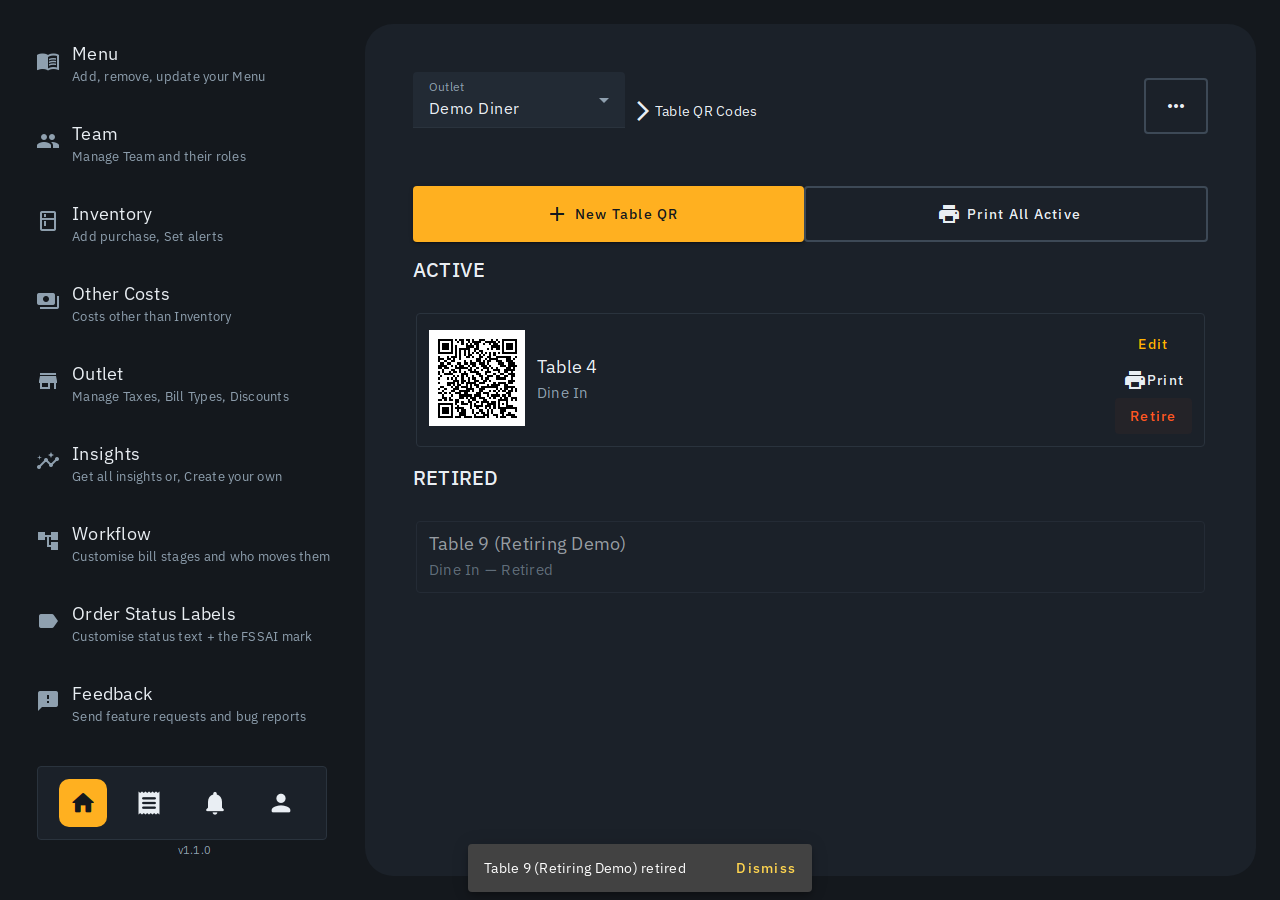
Open Update on a table: its Table QR panel offers Reprint, which never invalidates the sticker already on the table, and Retire, which moves the code out of use. Retired codes are listed under Retired QR codes in the page's menu; a retired QR code is never reused for a new table.
Picking a table when creating a bill
The Tables screen IS the table picker: a card per table shows Free, or a busy one shows its running total and how long it's been open, on an edge that warms up the longer it sits. Tap a free table to start a bill; tap a busy one to open the bill it already carries. A table holds one open bill at a time -- starting a second is refused and points you to the open one -- while Quick Bill counters such as Takeaway can run several at once.
Moving a party to another table
With their bill open, use the "..." menu's Move to another table, then tap the destination on the tables grid. A busy table is refused (one open bill per table); a Quick Bill counter accepts the bill even while it has others. The amount never changes -- taxes and charges stay pinned to the terms the bill was opened under, wherever it lands; only which action buttons show follows the new table's mode. Admins, cashiers and waiters can move a bill; kitchen cannot, and a completed/cancelled bill can't be moved.
What customers see when they scan a table QR
No app install needed -- a diner can browse the menu (with item details and photos), then either Order to table (sends the cart to the kitchen as one round/"wave") or View & place order (review first, then Confirm). They can order more waves through their visit. A Your table's order card shows a live status per item (Order placed / Sent to kitchen / Preparing / Ready / Delivered / Cancelled), refreshing every few seconds while food is still on its way. A Live bill card shows who ordered what (by person, with a "· Wave N" tag) and their running subtotal, from the real priced bill -- read-only, no online payment yet, always "pay at the counter." The running total is always the live bill total, so a line staff remove shows as Cancelled and the total drops with it. A diner can add at most 20 of one dish; for a bigger order they ask staff. Two diners ordering at the same moment both get their order in. Once staff finish the bill, every diner's screen switches to Paid - thank you with a link to the bill, and reloading the page keeps it until they choose to order again.
Notes
- Scanning a table QR opens nothing by itself: the table shows as taken, and a bill exists, only once the first order is placed. If staff open a bill on that table first, the diners' order joins that bill.
- Changes made on one device (a new bill, an item, a kitchen status, a moved, finished or cancelled bill, a price edit, a khata collection) show on your other open devices within a few seconds, without a reload.
- No floor-plan/zone layout yet -- the picker is a flat grid.
- "Occupied" means the table/counter has an active bill -- tables sharing one counter show the same occupied/empty state.
Diners joining a table by QR
Anyone who scans a table's QR can browse the menu without logging in. To order, the first diner logs in and becomes the host; everyone else enters the host's 4-digit table code, whether or not they are logged in. Only the host sees the code, and the host can refresh it if too many wrong codes were tried. When a bill is cancelled or finished, the table's session ends and the next party starts fresh.