
The app top bar, navigation, and switching modes
What's in the top bar
Every logged-in user sees their outlet's name and a notification bell badged with your unread count -- tap it to see notifications, register for push, or turn on Silence notifications (see below). If you belong to more than one outlet, the outlet name becomes a button to switch between them; otherwise it's just a label.
Admins additionally see:
- Current view (left) -- Cashier, Kitchen or Admin, read-only; use the Mode drop-down or navigation to switch.
- Credits ring (next to the bell) -- your Biller-credit balance. Tap it for the exact count, your plan status, and recharge.
Silencing the alert sound
New-order and kitchen alerts play a sound. Open the notification bell and turn on Silence notifications to mute it -- notifications still arrive and badge the bell, only the sound stops, until you turn it back on. The sound also stops on its own once you act on the notification or the order moves on.
The Mode drop-down
On the billing screen, admins see a Mode drop-down above the bill list to jump into Cashier, Kitchen, or Kitchen wall (TV display) without logging out. Once in Admin, use the navigation's Tables button to get back.
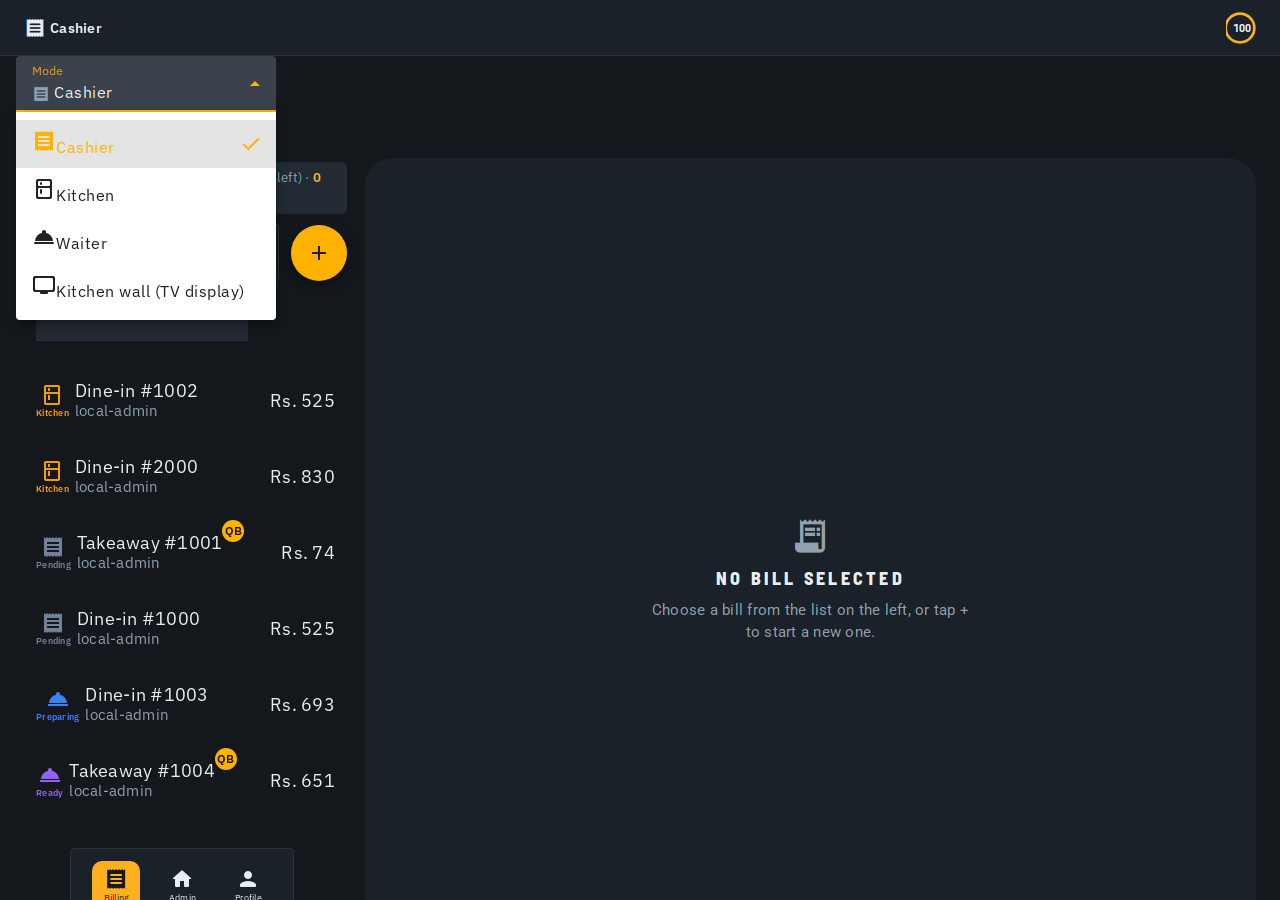
Kitchen and Kitchen wall only show up once your outlet has a kitchen. If every one of your bill types is set to "Quick bill" (see Bill types in outlet settings), your outlet is running counter-service only and the Mode drop-down drops down to just Cashier -- there's nothing for a kitchen screen to show. Switch any bill type off "Quick bill" and both options reappear immediately, no reload needed.
Getting around
A left-hand icon rail (a bottom bar on a narrow phone) ends in a Profile button. Admins additionally see Tables, Bills, Kitchen, Out of stock and Admin -- Kitchen only appears once at least one bill type is not marked "Quick bill", same rule as the Mode drop-down above. Cashier/Kitchen staff logged in directly only see the destinations their role covers.
The profile menu
Tap Profile for your name (tap the pencil to edit it; the photo is shown, not editable), Theme (Light/Dark/ System), and Logout. Your name is set once, on the setup page for a new owner or on the invite page for staff who join a team.
Low bill warning (Waiter/Cashier)
If you're a Waiter or Cashier and your outlet has 10 or fewer Biller credits left (and isn't on an active plan), a warning above the bill list lets you know to ask your admin to buy more. Kitchen staff don't see it.