
Packaging charges
Biller lets you charge for containers/packaging on a bill -- either by picking one or more container presets you've set up in advance (with a quantity each, so an order that needs 2 small boxes and 1 large box can charge for exactly that), or by applying a percentage of the bill instead. Either way, this is picked at billing time, right before you complete the bill -- never fixed in advance.
Creating packaging-charge presets
- Go to Outlet › Packaging charges in the admin side bar.
- Under Packaging charges, tap New packaging charge.
- Fill in:
- Preset Name -- e.g. "Small box", "Large box", "Foil container". This is the name that shows up on the bill and receipt once applied.
- Amount (Rs.) -- the flat rupee price for one of this container.
- Active -- only active presets can be applied to a bill; toggle one off to retire a container you no longer stock without deleting its history.
- Tap Add.
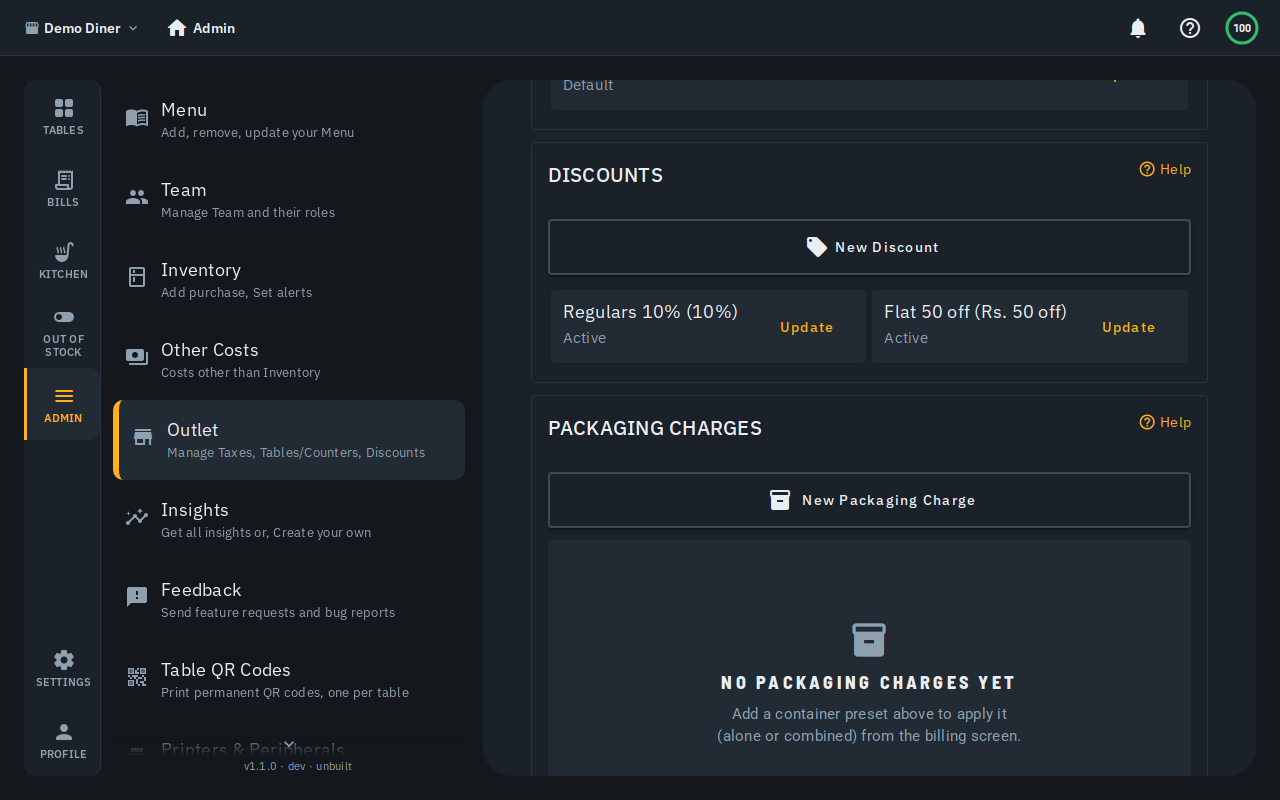
Each preset you create appears as a compact row, showing its name, amount and whether it's active. Tap Update on a row to change it, or to delete it.
Applying packaging charges to a bill
- Open a bill on the billing screen.
- In the bill summary, next to Discount, tap Packaging (or Change packaging if one is already applied).
- Either:
- Combine containers -- tap a preset to add one, then use the +/- stepper next to it to adjust the quantity. You can pick as many different presets as the order needs (e.g. 2x Small box + 1x Large box).
- Or a percentage of the bill -- type a number in the or % of bill field instead. This is a separate mode: picking a percentage clears any containers you'd selected, and picking a container clears the percentage.
- Tap Apply to save your selection, or Clear to remove whatever packaging charge is currently on the bill.
The bill's total updates immediately -- the packaging charge is added to the taxable amount, so it's taxed the same as the rest of the bill. Once applied, it is locked in for that bill: editing a preset's price (or the outlet's percentage-mode choice) afterwards never changes a bill's total retroactively.
Notes
- Packaging charges apply to the whole bill, not individual items.
- A container combination and a percentage are mutually exclusive on any one bill -- picking one clears the other.
- Applying a packaging charge is available to admins, cashiers and waiters; only admins can create, edit or delete presets.
- The packaging line shows up on every receipt surface -- the billing screen, the customer's digital bill, the printed receipt, the thermal print-out and the GST tax invoice -- consistently, labelled with exactly what was applied (e.g. "Packaging (2x Small box, 1x Large box)" or "Packaging 5%").