
Making a bill
Ring up orders on the Tables screen -- from opening a table to handing over the receipt. The steps below cover a typical Quick Bill counter; the in-app help assistant has the full detail on staged Advanced tables, item notes, and cancellations if you need it.
Start a bill
- Tap a table or counter on the Tables grid, then confirm Start bill.
- Add dishes: tap anywhere on a dish's row to add one -- tap it again for another. Once it's on the bill, a badge shows the running count and a round - button appears to take one off. Each row carries a thin colour edge on the left: green = veg, yellow = egg, red = non-veg.
- Use the category chips or Search dishes and categories to find a dish fast. On a phone, search starts collapsed behind a search icon so the dish grid gets the screen -- tap it to open the field.
Selling something not on your menu
Tap Custom item next to search for a one-time line -- type a name and price (and an HSN/SAC code if you file GST returns), then Add to bill. Only Admin and Cashier can add a custom item; a waiter can still edit or remove one an admin/cashier already added to the bill. It's taxed exactly like every other item on the bill, including your outlet's GST inclusive/exclusive default. If you have menu-edit rights, a Save this to the menu toggle lets you add it to your real menu in the same step, so you don't have to type it twice.
Send it to the kitchen
Tap Print KOT when the order is ready to cook -- nothing reaches the kitchen before that tap, so add or remove items freely first.
Print KOT again after adding more dishes and the new ticket lists only what was added since the last one, headed KOT — ADDED; only a repeat tap with nothing new prints the whole order, headed KOT — REPRINT. An extra unit of a dish already sent shows as its own Not sent to kitchen line, and a bill with everything sent carries a Sent to kitchen label. If the kitchen printer cannot be reached the order still reaches the kitchen screen, and you can print a paper copy or tap Print KOT again. While a ticket is on its way the KOT button reads Sending... and ignores taps, and Finish waits; two phones tapping KOT for the same items at once print one ticket. If the kitchen printer is known to be off, the sheet says "Kitchen printer is off or unreachable" and offers Send to wall + paper copy and Check printer. Add more dishes at any stage, even while the kitchen is cooking the first round, and tap Update kitchen to send them (with nothing new it says "Nothing new to send to the kitchen"). A table bill shows Finish beside it from the first send, so you never wait for Ready or Delivered. If dishes on a table bill were never sent, Finish sends them to the kitchen first. A table finished while the kitchen is still cooking stays on the kitchen board until it is ready. A waiter sends orders and can apply the quick-apply discounts; the bar reads Cashier takes payment because only a cashier or admin can finish a bill or type a custom discount.
Take payment
Tap Finish. The sheet's big button pays with whichever tender your outlet uses most (the other three sit below it as chips: Cash, Card, UPI, Due) -- one tap and the bill is done. Typing a customer's Name above it reveals Mobile number and GSTIN/birthday/anniversary fields, plus + Address (and, on a Delivery bill, + Delivery address) for the address and state a ₹50,000+ tax invoice needs; the name field searches your saved customers as you type -- tap a match to fill their phone, GST and dates automatically, or keep typing to add someone new. (The customer block opens automatically if your outlet requires a name to complete a bill, or the bill is Delivery.) Add a mobile number and the big button becomes Finish & send on WhatsApp, completing the bill and opening a WhatsApp chat with the receipt in one tap. The table frees up once you finish.
If your outlet requires a name to complete a bill and none is typed, a red note explains why and Finish stays blocked until you type one. A bill of ₹50,000 or more with the name or address still empty shows an amber note about GST Rule 46(e) -- Finish still works, and the note clears once both are filled in or a customer GSTIN is added.
One table, one bill — and drafts
A table can only carry one open bill at a time: starting a bill on a table that already has one is refused, and the app points you at the open bill instead. Takeaway and Delivery are exempt: a busy Takeaway tile reads ₹total · N open and has a round + that starts another bill. Tap the tile to reopen the bill (with two or more open, pick which one).
Need the table back before the bill is settled? Open the bill's "..." menu and tap Save as draft: the bill is parked with all its items and prices exactly as they were, and the table shows Free again. Load it back any time from the same menu with Resume draft — as long as the table hasn't been taken by another bill in the meantime.
Cancel or void a bill
Open the bill's "..." menu and tap Cancel Bill; you are asked for a reason first, and the kitchen is told if it had already been sent the order. A cancelled bill stays in the Bills list as Cancelled and can no longer be shared or invoiced. An admin can undo a finished sale from More, Void bill: stock goes back, the day's sales drop it and a credit note is recorded.
Share the bill
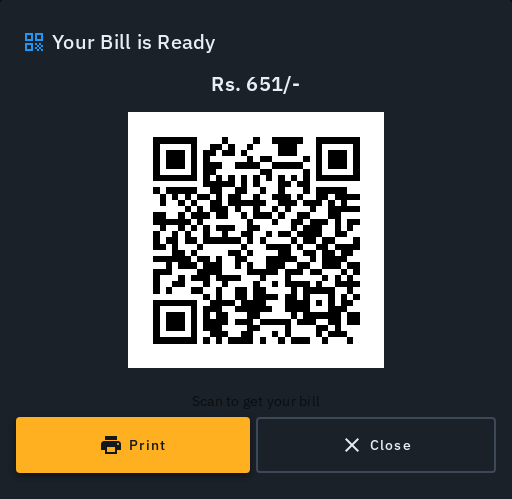
Once completed, tap Show QR for a scannable bill, Send on WhatsApp, or Print.
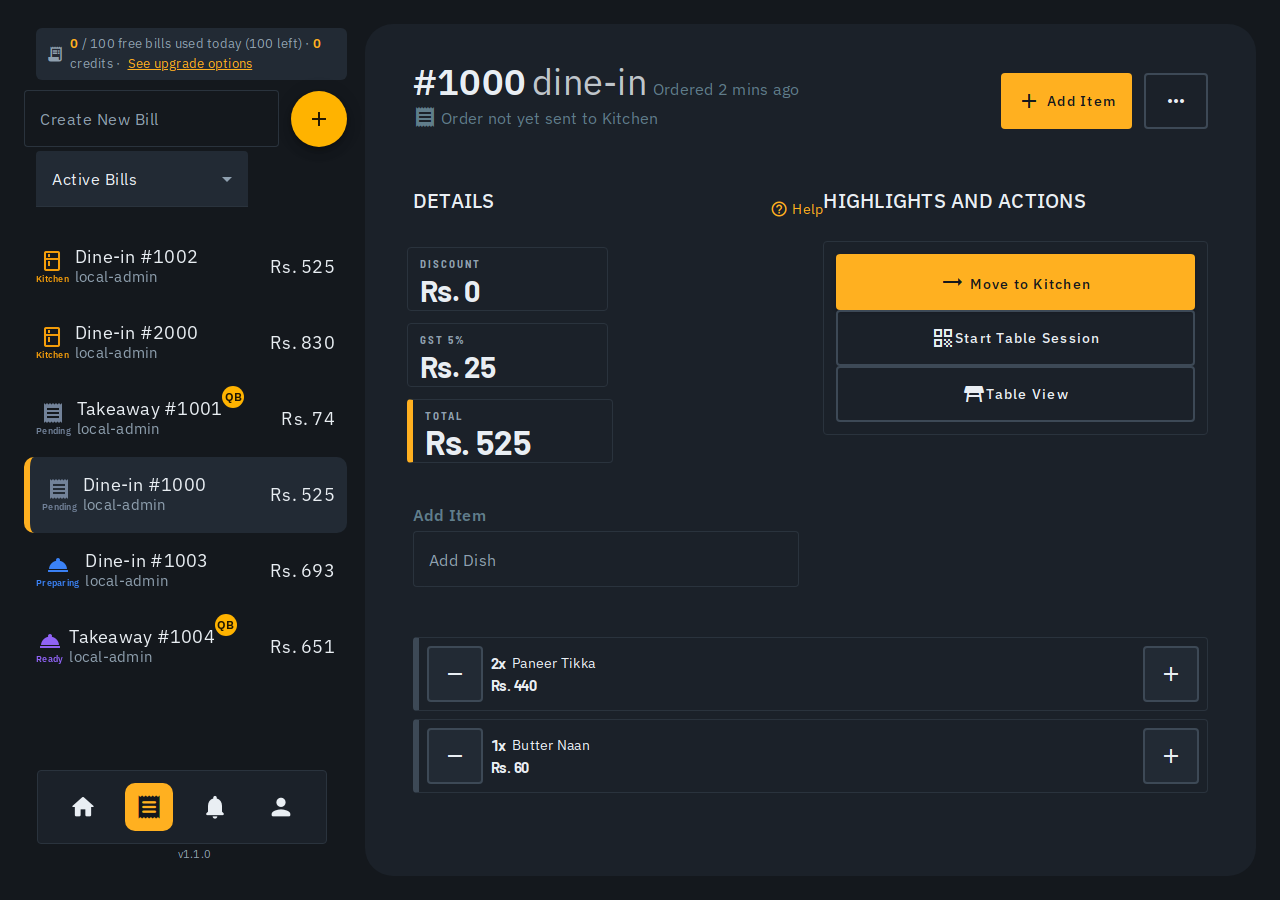
A guided walkthrough covers this same flow the first time you visit -- restart it any time from the bill's "..." menu.
The totals panel
Subtotal is the pre-discount amount. Once a discount or a packaging, delivery or other charge applies, a Taxable value line appears below them -- the same figure the tax invoice prints -- and the tax lines follow it.
A service charge your outlet adds by rule shows a Voluntary tag. Tap Remove beside it to take it off this bill only; Undo in the message that follows puts back exactly the line you removed, at its original rate, even if the outlet changed the rule since. Undo only works on the bill the charge was taken from; the bill keeps a note of who removed it and when. The outlet rule and other bills are unchanged, and the invoice shows only what the bill holds.