
Discounts
Biller supports two kinds of discount, applied to a whole bill (not individual items): a percentage off (e.g. 10% off) or a flat amount off (e.g. Rs. 50 off). You first define named discounts for your outlet, then apply one from the billing screen when you need it.
Creating a discount
- Go to Offers in the admin side bar. Discounts moved there, so the money rule sits beside the campaign about it.
- Tap New discount.
- Fill in:
- Discount Name -- e.g. "Festive 10% off", "Flat 50 off". This is the name that shows up on the bill and the printed/customer receipt once applied.
- Type -- Percentage or Flat amount.
- Value -- the percentage (e.g.
10for 10%, capped at 100) or the flat rupee amount (e.g.50). - Active -- only active discounts can be applied to a bill; toggle one off to retire a past promotion without deleting its history.
- Expiry (optional, collapsed by default) -- opens to two limits,
either or both of which you can set:
- Stop on a date, with an Expires after date/time field.
- Stop after a number of uses, with a Maximum uses field. Whichever limit is hit first ends the discount. A Used so far row shows the current count -- Biller tracks this and it can't be edited directly. Leave both off for a discount with no expiry.
- Tap Add.
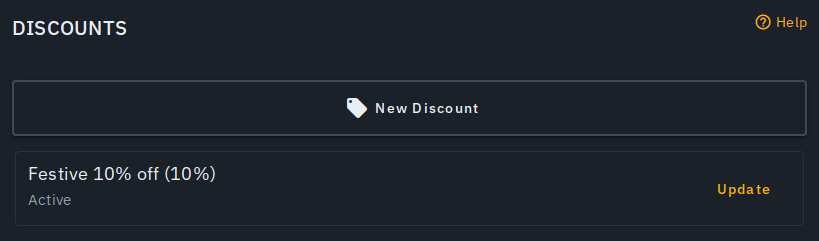
Each discount you create appears as a compact row, showing its name, value, and a detail line with its expiry state (e.g. "Active · expires 30 Sep · 42 of 200 uses", or "Active · no expiry"). Tap Update on a row to change it, or to delete it.
Applying a discount to a bill
- Open a bill on the billing screen.
- In the bill summary, next to Discount, tap Apply (or Change if one is already applied).
- Pick one of your outlet's active discounts, tap a quick-apply chip (see below), or No discount to clear whichever one is currently applied.
- Tap Apply.
Two chip rows sit at the top of the sheet for one-tap apply: a built-in 5%, 10%, 15%, flat Rs. 50, flat Rs. 100 set (no setup needed), and your own active discounts labelled by rate ("10%", "Rs. 50").
The bill's total updates immediately, tax computed on the post-discount amount. Once applied, a discount is locked in for that bill -- editing or deleting the definition afterwards never changes an already-billed total.
AI offer suggestions
Suggest offers on the Offers page (3 credits) opens a panel of AI-proposed offers based on your menu, sales and business type, with the reasoning behind each one -- tap Create on a proposal to add it as a ready-made discount. Use New discount above to set up promotions by hand.
Notes
- No per-item discount today -- always whole-bill.
- An expired discount, or one that has hit its maximum-uses limit, can no longer be applied to a bill -- it still stays visible (and editable) in Outlet → Discounts for reference.
- On a menu whose prices include GST, a flat discount takes exactly that amount off the total the customer pays (a flat Rs. 50 leaves Rs. 50 less to pay); the Discount line on the invoice shows the smaller pre-GST part of it.
- A discount can never take a bill below Rs. 0 -- an oversized percentage or flat amount is automatically capped at the bill's subtotal.
- Applying a discount is available to admins, cashiers and waiters; only admins can create, edit or delete discount definitions.
- The discount line shows up on every receipt surface -- the billing screen, the customer's digital bill, the printed receipt and the thermal print-out -- consistently.
- A discount that has reached its maximum uses, has expired or does not run today is no longer offered on the billing screen, and the Offers page shows it as Used up, Expired or Not today instead of Active.