 ILLER
ILLERHelp
Import your menu from a CSV
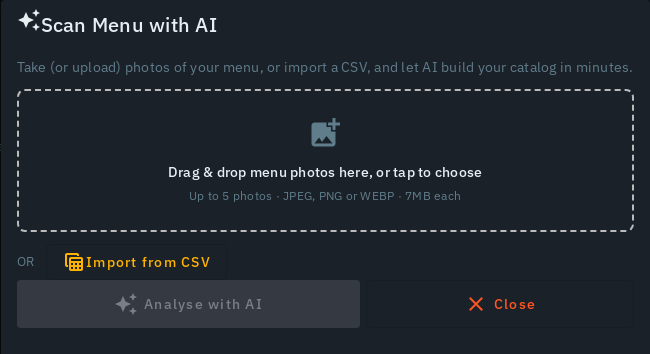
Already have your menu in a spreadsheet, or exported from another POS? You don't have to retype it. Biller can import a CSV file straight into the same review step the AI menu scan uses -- so you check every row before it becomes your real menu.
Importing a CSV
- Open Upload Menu Photo -- the Upload Menu Photo button at the top of Menu (during first-run setup it's the featured "Get your menu in fast" banner on the Bills and Menu screens).
- Tap Import from CSV and pick your file.
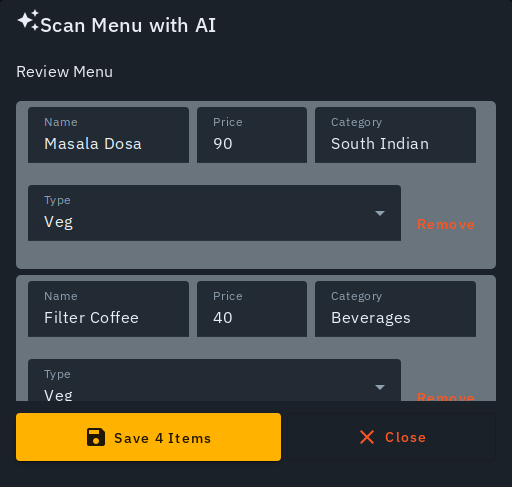
- Biller reads it and drops the rows into the review step below, the same place a photo scan lands.
What columns it reads
Biller matches common column headers a few different ways, so most spreadsheet or POS exports work without reformatting:
- Item name -- from a column headed Item Name, Name, Menu Item or Product Name.
- Price -- from Price, Rate, Item Price or MRP.
- Category (optional) -- from Category, Category Name, Item Category or Sub Category.
- Type (optional) -- veg / non-veg, from Item Type, Type, Food Type or a Veg / Non-veg column.
A comma inside a quoted item name (e.g. "Salad, House") is handled
correctly -- it stays one item, not several. Columns Biller has no field for
yet (item IDs, tax slabs, packing charges, and the like) are simply ignored.
Reviewing before it saves
Your imported rows land in the same editable review step as an AI photo scan:
- Every name, price, category and type is an editable field -- fix anything that came across wrong.
- A row whose name matches an item already on your menu is flagged with a price comparison (old price → new price) and an Update existing item checkbox, checked by default -- untick it to add a brand-new item instead of overwriting.
- Remove any row you don't want.
- Tap Save (or Add) to commit the remaining rows.
Nothing is saved until you commit on the review screen.
Tips
- If the file's header row has no recognisable name or price column, Biller tells you the format wasn't recognised rather than importing garbage -- check the column headings and try again.
- CSV import is also the reliable fallback if AI photo scanning is ever temporarily unavailable or rate-limited.
- Once your dishes are in, you can link them to inventory and let AI suggest ingredients -- see Add ingredients with AI.