 ILLER
ILLERHelp
Tables & QR codes
Biller's table QR codes are permanent, one per table: you create one QR per physical table, print it, and stick it down. It's a simple registry -- there's no seating chart or floor-plan layout in the product today (that's on the roadmap).
Adding a table QR code
- Go to Table QR Codes in the admin side bar.
- Tap New Table QR.
- Fill in:
- Table Label -- whatever you call the table, e.g. "Table 4".
- Table/Counter -- which table/counter this table's QR should open (see the Taxes & charges guide for what tables/counters are).
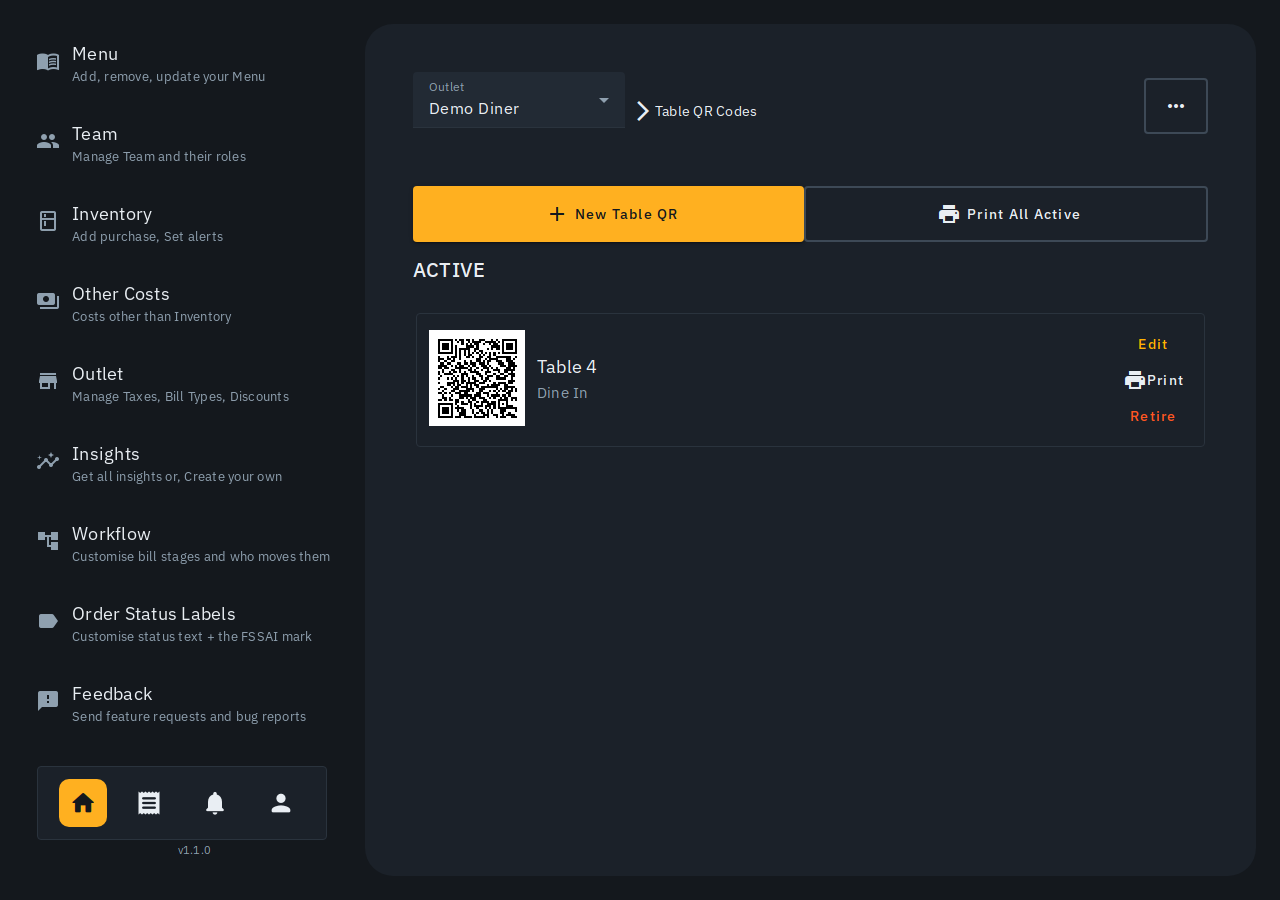
- Tap Add. The new QR appears under Active, with a small preview of the code right on its card.
Printing a QR
- Tap Print on a single table's card to print just that one, or tap Print All Active at the top of the page to print every active QR at once, laid out as a grid ready for cutting out and sticking to tables.
- Each printed code shows the QR, the table's label, and your outlet name.
Editing or retiring a table
- Tap Edit on a table's card to change its label or table/counter.
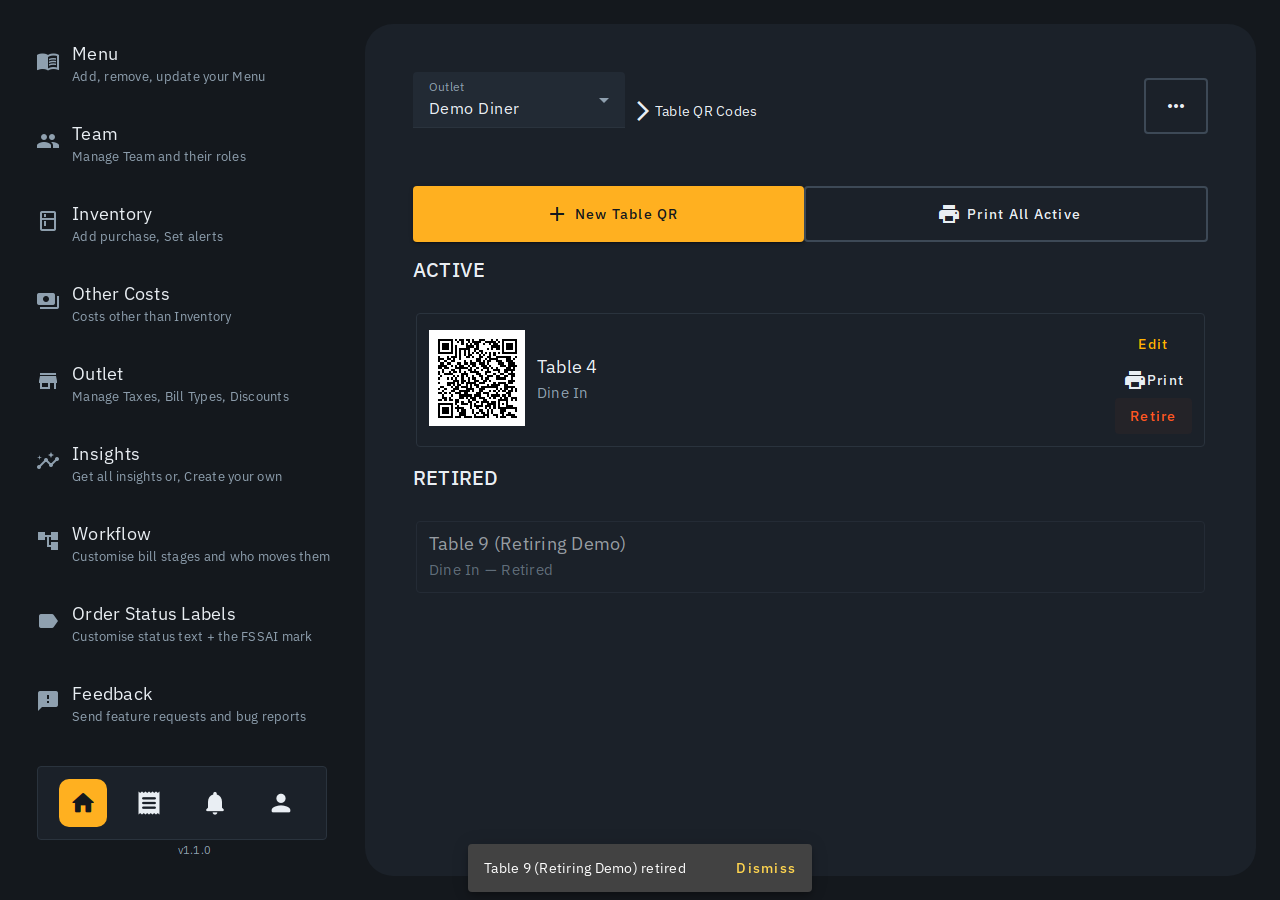
- Tap Retire to take a table QR out of use -- retired codes move to a separate Retired list below the active ones and stop showing up as printable/active, but stay on record rather than being deleted outright.
What customers see when they scan a table QR
A diner who scans a table's QR lands on a menu they can browse and order from directly, right from their own phone -- no app install needed:
- They browse the menu by category, or search across all of it.
- Tapping Order to table sends whatever's in their cart straight to the kitchen as one order (a "wave").
- Tapping View & place order instead opens a review screen first -- every selected item with its quantity (still editable there), a running total for that order, and a short note that this is one order round; they can always come back and order more after. A Confirm button on that screen places the same order the same way; Back returns to the menu with their cart untouched.
- A diner can keep ordering more rounds (waves) throughout their visit -- each confirmed order/wave is added to the table's running bill.
Notes
- There's no seats-per-table or floor-plan view yet -- a table QR is just a label and a table/counter. Layout/floor-plan support is planned for later.
- A retired QR's code is never reused for a new table -- if you print a replacement for a table, add a fresh QR rather than trying to revive a retired one.