 ILLER
ILLERInventory & stock
Biller's Inventory tracks the raw stock behind your dishes -- what you have, what you bought, and what a sale used up. Once your menu items are linked to ingredients, stock comes down on its own every time a bill is completed, so your counts stay honest without anyone re-typing them.
Inventory is an admin-only area -- cashiers, waiters and kitchen staff don't see it.
Adding an inventory item
- Open Inventory from the admin side bar (it's labelled "Add purchase, Set alerts").
- Tap Add Inventory Item.
- Fill in:
- New Inventory Name -- e.g. "Milk".
- Unit -- Kg, Grams, Litre, ml or Piece. Use ml for small liquid quantities (ghee, oil, milk) so they read as "30 ml" instead of an awkward decimal litre like "0.03 ltr".
- Category (optional) -- leave blank to keep it Uncategorized.
- Icon (optional) -- pick one, or leave it on "Auto" to get an icon based on the category automatically. Items added by "Suggest ingredients (AI)" get a category-based icon automatically too, so they no longer all look the same.
- Current Amount (No. of Units) -- how much you have right now.
- Stock Space (No. of Units) -- the full/target level, used to show how much is left as a percentage.
- Notify at (No. of Units) -- the low-stock threshold that triggers an alert.
- Shelf life (days, optional) -- override the AI-suggested default (e.g. cold-store paneer defaults to ~5 days) used by Expiry review below. Leave blank to use the default.
- Tap Save.
The State tab: seeing what's left
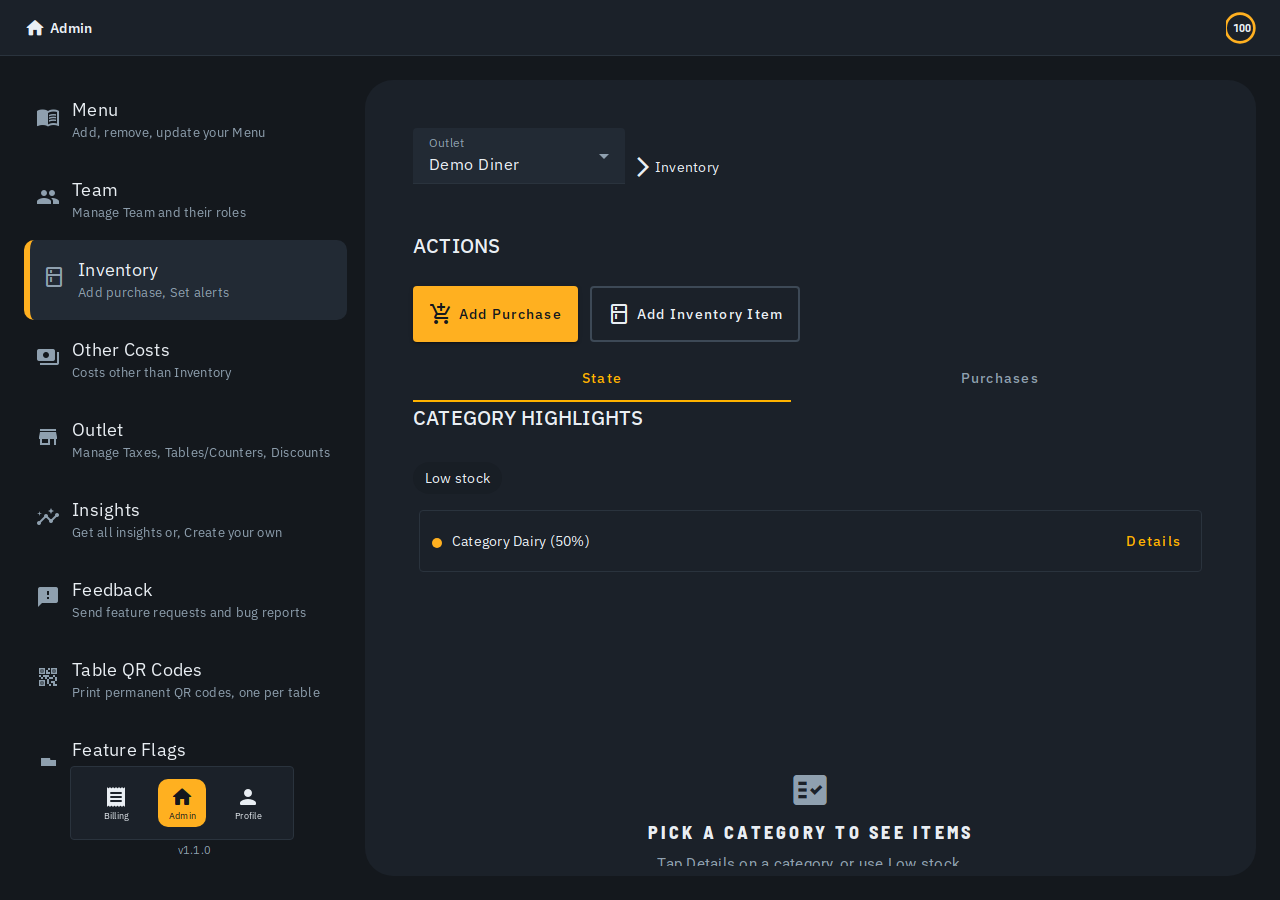
The State tab groups your items by category under Category Highlights. Each category shows an average "% left" with a colour dot (green / amber / red), and a Details button to expand its items -- each item showing its current amount against its stock space. A Low stock filter chip narrows the view to just the items at or below their Notify at threshold. Items with no category collect under Uncategorized.
Once an item has at least one logged purchase, its row also shows the last purchase price per unit (e.g. "Rs. 50.00/kg (last purchase)") -- a quick read of what you last paid without opening Add Purchase's price panel. An item with no purchase history yet shows no price line.
Weekly reorder list
Tap Weekly reorder list at the top of the Inventory page for a one-click list of everything you need to order: every item at or below its Notify at threshold, grouped by category, each with a suggested quantity. The suggestion tops the item back up to its Stock Space level when that's set usefully above the threshold, or otherwise just enough to clear the alert. Copy list puts a plain-text copy on your clipboard to paste into a chat or vendor order. (This is a stock-based v1 -- it doesn't yet project quantities from how fast you're actually using each item; see Weekly ingredient buy forecast below for that.)
Weekly ingredient buy forecast
For outlets with this rolled out, a Weekly buy forecast button on the Inventory page projects, per ingredient, roughly how much to buy for the next week -- based on your last few weeks' sales of the dishes that use it and your current stock. Each row shows what's needed, what you already have, and a suggested quantity to buy, clearly labelled with its basis (e.g. "Based on the last 3 weeks' sales"). A dish too new to have enough sales history shows "Not enough data yet" instead of a number -- never a guess. This is advisory only: it never places an order or changes your stock on its own, and it only covers ingredients already linked to a dish's recipe (see Linking ingredients to dishes below). Being rolled out gradually -- if you don't see the button yet, it isn't enabled for your outlet.
Draft purchase list
Inside the weekly buy forecast panel, tap Build purchase list to get one editable shopping list: every ingredient the forecast says to buy, plus any low-stock item the forecast doesn't cover (e.g. not yet linked to a dish), each pre-filled with a suggested quantity. Adjust any quantity, remove a row you don't need, then Copy list (clipboard, to paste into a chat or vendor order) or Print. It's a shopping list only -- no supplier/vendor integration, and nothing here changes your stock until you actually log the purchase.
Expiry review
For outlets with this rolled out, an Expiry review button on the Inventory page lists restocked items nearing (or past) their shelf life, each with the amount on hand and a suggested write-off. Shelf life defaults to an AI-suggested value per ingredient (e.g. dairy ~5 days, leafy greens ~3 days, dry goods ~180 days) unless you've set your own on the item (see Adding an inventory item above). Biller never decrements stock on its own -- tapping Write off is what actually reduces the count, and every write-off is recorded just like a manual correction. Being rolled out gradually -- if you don't see the button yet, it isn't enabled for your outlet.
Seasonal buying intel
For outlets with this rolled out, a Seasonal buying intel button on the Inventory page surfaces two kinds of buying hints -- kept separate and each clearly labelled with where it comes from, never blended into one number:
- Based on your sales trend -- a real, computed week-over-week change in how much of an ingredient you've actually been using, so you can see what's genuinely rising or falling for your outlet.
- Festival calendar (heuristic) -- a static list of major Indian festivals (Diwali, Holi, Eid, Navratri, Ganesh Chaturthi, Onam, Pongal, Raksha Bandhan, Christmas and more) with a category-level demand hint (e.g. sweets and dairy tend to rise before Diwali) when today falls in that festival's approximate window. This is a directional heuristic, not a forecast tied to your own sales -- it never claims a precise percentage.
This is advisory only -- it never changes your stock. Being rolled out gradually -- if you don't see the button yet, it isn't enabled for your outlet.
Correcting a count
Did a physical stock-take and the numbers don't match? Tap Correct on an item. This opens the item sheet pre-filled -- the amount you enter is treated as an absolute recount (what's actually on the shelf), not an adjustment added to the old figure. Every correction is recorded, so there's a trail of what was changed and when.
Logging purchases (adding stock)
When stock comes in, log it so your counts go up:
- Tap Add Purchase.
- Fill in Purchase Date, Item Name (pick an existing inventory item), Vendor Name, Units and Price.
- Use Add Another Purchase to log several lines at once, then Save.
As you type, a price panel shows context from your history -- Last Purchase, this vendor's last and average price, the overall average, and the percent change -- so you can spot when a price has crept up. The Purchases tab lists past purchases grouped by date, with a Reuse button to quickly repeat a previous purchase. (Purchase history shown here covers the last month.) Each purchase shows the item's category, same as the State tab -- an item with none set shows Uncategorized rather than a blank.
Vendor names are remembered for autocomplete as you reuse them -- Biller keeps the name on each purchase, so you don't need to set up a separate supplier record.
Linking ingredients to dishes
Auto-deduction works off a simple recipe: which inventory items a dish uses, and how much of each.
- Open a menu item's editor (Menu → Update on the item).
- Under Inventory Details, use the Inventory Item autocomplete and the Units field to add each ingredient and its amount. + Inventory adds another line; Delete removes one.
Prefer not to type every recipe by hand? Biller can suggest ingredients with AI -- see Add ingredients with AI.
Stock comes down when a bill is completed
Once dishes are linked to ingredients, completing a bill automatically subtracts what was used -- each linked ingredient's recipe amount times the quantity sold. A few things worth knowing:
- It won't double-count. A bill only ever deducts once, even if it's updated or reloaded.
- Cancelling puts it back. If a completed bill is reversed, the exact amounts that were deducted are restored.
- Running out disables the dish. When a linked ingredient hits zero, any dish that needs it is automatically marked Out of Stock so it can't be ordered. Turning it back on is deliberately manual -- Biller won't silently re-enable a dish once you've restocked; you confirm it's really back.
Low-stock alerts and scheduled summaries
- When a sale takes an item below its Notify at level, admins get a push notification that inventory items are running low.
- Biller also sends admins a daily inventory summary each morning and a weekly one -- covering what you spent on purchases, your top consumed items, and anything currently below its alert level. (Push notifications need to be enabled for the outlet.)
Guided tour
The first time you open this page, a short guided tour walks through logging stock, the category highlights, the Low stock filter, the per-category ingredient view, and the weekly reorder list. It only shows itself once; if you want to see it again (or missed it), open the "..." menu and pick Take a Tour.
What Biller doesn't do (today)
So you know where the edges are:
- No supplier profiles, contacts or purchase orders -- a vendor is just a remembered name on a purchase.
- No batch/lot tracking or barcodes; expiry is per-item (not per-batch) and based on the last restock date, not per-purchase-line tracking. No unit conversion (a recipe's amount must be in the same unit as the inventory item).
- No general wastage log beyond Expiry review's write-offs -- for spoilage unrelated to shelf life, use Correct after a stock-take.
- No multi-location/warehouse stock -- inventory is per outlet.
Tips
- Set Stock Space and Notify at thoughtfully -- they drive both the colour dots on the State tab and when you get alerted.
- Keep units consistent between an inventory item and the recipe amounts that reference it, since there's no automatic conversion.
- Linking ingredients is what makes auto-deduction and low-stock alerts work -- a dish with no linked inventory simply won't move stock when it sells.