Kitchen Display Screen vs Printed KOT: Choosing a Kitchen Setup That Fits Your Outlet
Published
A kitchen screen and a printed order ticket can carry the same order, but they ask your team to work in different ways.
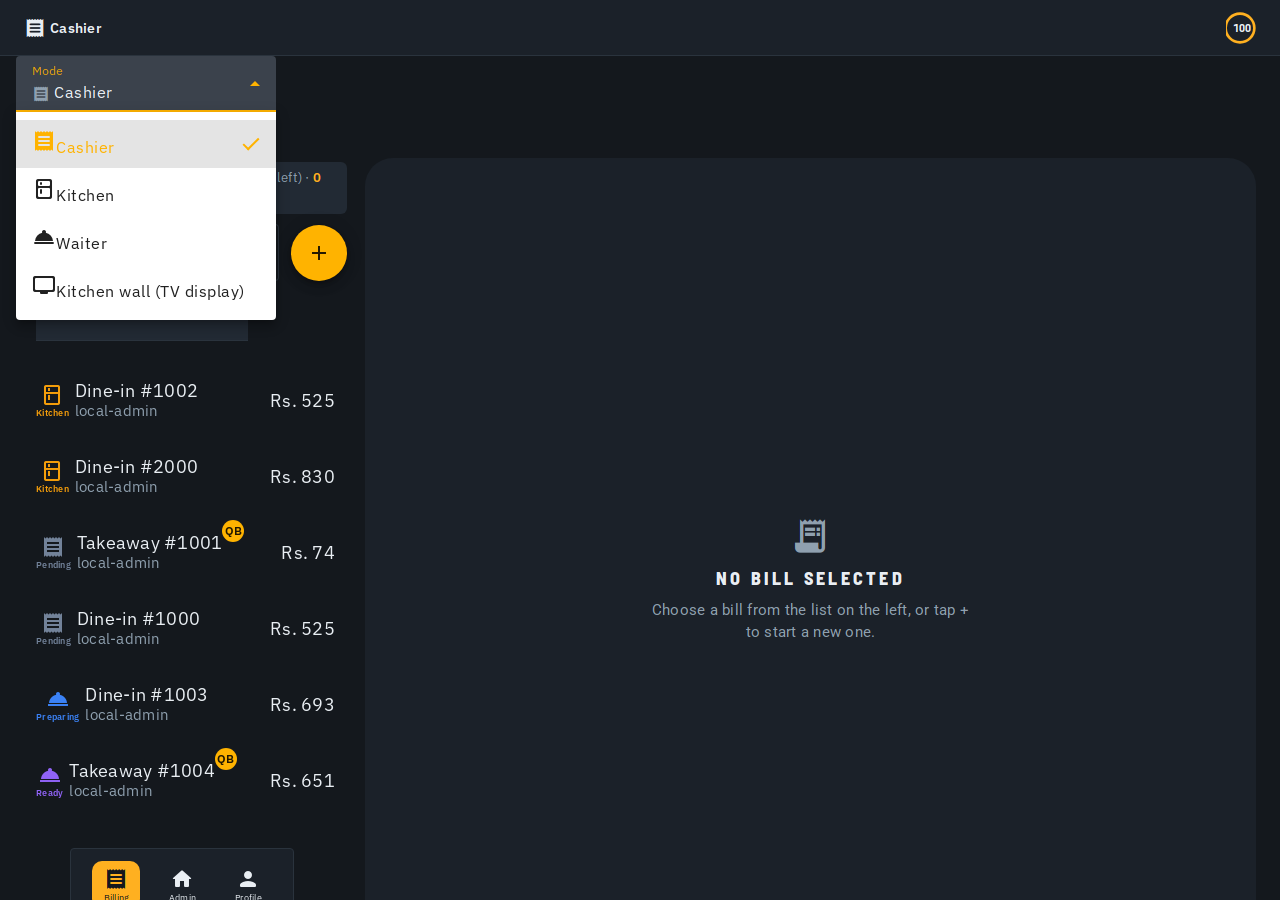
In Biller.app, the ticket wall and printed KOT are independent ways to reach the kitchen. You can use paper instead of a mounted screen, or use both. You do not need to print a ticket before it can appear on the wall.
For a small cafe, the question may be where the cook can read orders clearly. For a larger kitchen, it may be how a grill station and bar see their work. Start with that daily routine rather than assuming one format suits every outlet.
What is this comparison based on?
This guide combines Biller.app's kitchen display setup and ticket-wall help with its printing and printer setup guides. The display source explains how to open and keep a wall running. The related guides supply the printed-KOT details needed for a fair comparison.
The kitchen ticket-wall guide describes live tickets and status changes. The printing guide explains KOT formats and automatic printing. Keep the distinction in mind: a live view and a piece of paper do not present later changes in the same way.
What does the kitchen display show?
The ticket wall is a full-screen grid of active tickets, built for a mounted TV. Tickets appear when a bill is sent to the kitchen and update live. The kitchen board is a separate working view that shows one selected ticket at a time.
Each ticket shows its table or counter and items grouped by category. A coloured age band moves through green, amber and red. Once the target preparation time is passed, the ticket shows how many minutes it is over. A ready ticket gets its own badge.
If a table orders more than once, both kitchen views group the items under Round 1, Round 2 and later rounds, oldest first. A single-round ticket has no round headers. For a table adding tea after snacks, that grouping helps staff read the order in sequence.
The wall is read-only for advancing work. You cannot tap a dish on the TV to mark it ready. Use the kitchen board to select the ticket, tap Start Preparing and then Mark Ready. Delivered is handled from the Bills screen.
What does a printed KOT give the kitchen?
A KOT is the kitchen order ticket on paper. Biller.app can print kitchen tickets automatically to a network thermal printer without a browser print dialog. Each printer has its own setting for automatic printing when an order is sent to the kitchen.
The Quick bill with kitchen flow prints a compact KOT for a single-station kitchen. An Advanced-flow bill prints larger, bold text and each item's menu category. Later table order rounds print under Wave 2, Wave 3 and so on.
For example, if staff increase a sent dish's quantity, resending prints only the extra amount, such as +2 Paneer Tikka. It does not print the whole order again. Explain that difference to the cook so an extra-quantity ticket is not read as a replacement order.
Print KOT remains available for reprints even when automatic printing is off. Paper therefore supports a manual print routine as well as an automatic one. Decide who will trigger manual prints before relying on that routine during service.
How do cancellations and later changes compare?
The wall updates as work changes. If a sent item is cancelled, it remains visible with a strike-through and a VOID or WASTE tag. The tag can show its reason. The kitchen board also shows each live item's Sent, Preparing or Ready status.
If a whole sent bill is cancelled, its ticket stays on the wall and board for 60 seconds. It is dimmed, with crossed-out items, a red CANCELLED tag, the reason and a countdown. It is excluded from active tickets and can be cleared sooner.
A sheet already on the kitchen rail cannot change its printed text. Do not assume the live cancellation display means an old paper ticket has been updated too. Agree how staff will communicate a changed or cancelled order when paper is part of the process.
For example, a cook working from paper needs to know when a waiter cancels a dish already being prepared. This guide does not promise an automatic cancellation printout. The documented live cancellation view belongs to the wall and kitchen board.
What do you need to mount a kitchen display?
Use a tablet, or a laptop or mini-PC connected to a TV. Sign in with a team member's account for the outlet. The setup guide lists Admin, Cashier, Waiter and Kitchen accounts as able to open the wall without separate approval.
Open the switch mode menu and choose Kitchen wall (TV display). You can also select Open Ticket Wall above a ticket on the kitchen board, which opens a new tab. The wall has its own address, /app/kitchen-wall, which you can bookmark.
On Android Chrome, use Add to Home screen from the browser menu. On iPad or iPhone Safari, use Share and Add to Home Screen. Launch from that icon for a full-screen view without the browser's address bar and tabs.
Leave the wall open; it refreshes through the app's real-time connection without manual reloads. If a mounted display becomes stale or blank, relaunch it from the home-screen icon. The display setup guide covers these steps.
What does automatic kitchen printing need?
For network printing, use a thermal printer with Ethernet or WiFi and its local IP address. The printer must be on the same local network as the device running Biller. Network setup uses port 9100 unless the printer manual specifies another port.
For a cloud-hosted outlet, the hosted service cannot reach your local printer directly. Install and pair the Biller.app computer bridge on an always-on machine at the outlet. Leave that computer running so the hosted service can reach the local print setup.
In Admin, open Printers & Peripherals, add the printer and choose Kitchen or Both as its role. Thermal paper widths are 58mm or 80mm. Check that the printer's send-to-kitchen automatic printing setting matches your intended routine.
Use Test Print to check the physical output. Check status tests reachability without printing. An offline printer may be unplugged, off WiFi or using a changed IP address. The network printer setup guide explains those checks.
Can you use an office printer or work without internet?
A System default printer (A4) can have the Kitchen or Both role. Print KOT then opens a plain-paper ticket in the browser print dialog. That ticket contains items, quantities and kitchen notes, with no prices. It is a manual paper option without a thermal printer.
Do not treat paper as a promise of offline order delivery. The offline billing and computer-install help explicitly state that kitchen tickets still need internet. Reconnect and send them again. Local receipt printing working offline does not establish that KOT sending works offline too.
The wall uses a live connection, so do not assume a screen left open has the newest orders during a connection problem. For example, if staff report an order missing, check the connection and current view rather than judging only by the display being lit.
Printing is best-effort: an offline printer does not block completing a bill or sending an order to the kitchen. A successful billing action is therefore not proof that paper came out. Check the actual printout when diagnosing a missing ticket.
Which setup fits a single kitchen or several stations?
One mounted display is enough for a single-kitchen outlet according to the setup guide. Choose it if your team wants all active tickets visible together. Keep the kitchen board available for staff who need to advance a ticket's status.
Printed KOT can fit an outlet where the cook works from a paper rail and no mounted screen is available. Both formats can also be used together. Agree which view the cook checks for live changes so the two formats do not create uncertainty.
With more than one kitchen printer, a new wall screen asks which station it belongs to and remembers that choice. Tap the station name to change it, or choose All stations. A grill display and bar display can therefore have their own remembered station selection.
Before choosing equipment, walk through one order, an added quantity and a cancellation with your staff. This is a suggested check of your routine, not a claim of measured time savings. The useful setup is the one your team can read and act on reliably.
What do owners ask about KDS and printed KOT?
Must I print before using the ticket wall?
No. The wall and printed KOT are independent ways to reach the kitchen. You can use either or both.
Can the cook mark orders ready on the mounted wall?
The wall is read-only for status changes. Select the ticket on the kitchen board and use its action button to advance it.
Can an A4 printer print a kitchen ticket?
Yes. Give a System default printer (A4) the Kitchen or Both role. Print KOT opens a browser print dialog for a ticket without prices.
Will a kitchen ticket send when internet is down?
The offline and computer-install guides say KOT sending still needs internet. Send it again once the connection returns.
How should you start?
Choose one kitchen routine, check its display or actual printout, and show staff where status changes happen. Start billing free, no signup to explore Biller.app before planning your outlet's setup.
Who this is for: Indian SMB owners running restaurants and shops, from a single counter to multiple outlets. This kitchen comparison serves outlets preparing food. Biller.app is free to start with 510 Biller credits once, no card. A plain bill costs one credit, and credits never expire.