Bulk Menu Setup: CSV Import vs AI Photo Scan, and When to Use Each
Published
If your menu already lives in a spreadsheet, import it from a CSV file. If it only exists on a printed card or a wall board, scan a photo of it instead.
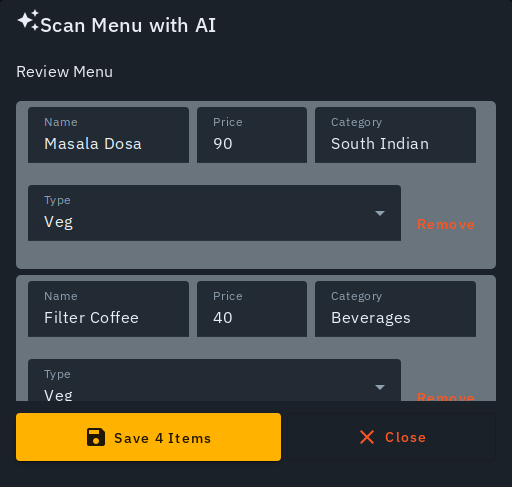
Both routes in Biller.app end in the same place: an editable review table. You check every row, fix what looks wrong, and only then does anything become your real menu. This guide explains which route suits which situation, so you do not waste an afternoon typing dishes by hand.
What is the difference between a CSV import and an AI photo scan?
A CSV import reads a spreadsheet file you already have. An AI photo scan reads a picture of a menu. The starting material is different, but the finish line is the same.
Imagine two owners. Meera runs a small café and keeps her whole menu in a Google Sheet, with 60 items and prices. Ravi runs a dhaba with a laminated menu card and nothing digital at all. Meera should import a CSV. Ravi should photograph the card and let the scan do the first pass.
Both of them start from the same button. On the Menu page tap Upload Photo. During first-run setup the same upload sheet is on the Menu step.
When should you use a CSV import?
Use a CSV when the data already exists in rows and columns. That covers a spreadsheet you maintain yourself, and it also covers an export from another POS you are moving away from.
The big advantage is that nothing has to be interpreted. A price of 240 in your sheet is a price of 240 in the review table. There is no guessing involved, because the file already says what each value is.
A CSV is also the better choice when your menu is long. If you have 200 items with category and veg or non-veg tags, you do not want to photograph pages and then correct them. You want the sheet loaded in one go.
One more reason: it is the reliable fallback. If AI photo scanning is ever temporarily unavailable or rate-limited, CSV import still works. You can read the full steps in the CSV menu import help article.
When does the AI photo scan make more sense?
Choose the photo scan when there is no file at all. A printed menu card, a board painted on the wall, or a PDF someone sent you years ago are all good examples.
Typing 80 dishes into a table by hand is slow and boring. Photographing the card takes a minute, and the scan puts the rows into the review step for you to check. You can read how it works in the AI menu scan help article.
The scan still needs your eyes. Every row lands in an editable table, so you look at each name and price before saving. Treat the result as a first draft that saves you typing, not as a finished menu.
The upload sheet takes photos, PDF, CSV and Word files in one picker, so you never have to decide in advance.
Which CSV columns does Biller.app read?
Biller.app matches common column headers in several ways, so most spreadsheet and POS exports work without reformatting. Here is what it looks for:
- Item name from a column called Item Name, Name, Menu Item or Product Name.
- Price from Price, Rate, Item Price or MRP.
- Category (optional) from Category, Category Name, Item Category or Sub Category.
- Type (optional), meaning veg or non-veg, from Item Type, Type, Food Type or a Veg / Non-veg column.
So if your sheet has a column headed "Rate" with ₹240 next to Paneer Tikka, it will be picked up as the price. You do not need to rename anything.
A comma inside a quoted item name is handled correctly. An item like "Salad, House" stays as one dish rather than splitting into two columns.
Columns Biller.app has no field for are simply ignored. Item IDs, tax slabs and packing charges all fall into this group. They will not break the import, but they will not come across either. You will need to handle those separately.
What happens in the review step before anything is saved?
Your imported rows land in the same editable review step as an AI photo scan. Every name, price, category and type can be edited right there.
Say your sheet had Masala Chai at ₹20 but you raised it to ₹25 last week. Change the price in the review table before you save. Say there is a row for a dish you stopped making. Hit Remove on that row.
When you are happy, press Save (or Add) to commit. Nothing is saved until you commit on the review screen. If you close out halfway, your existing menu stays exactly as it was.
What if a row matches an item already on my menu?
Biller.app flags it. A row that matches an existing item shows a price comparison, old price to new price, along with an Update existing item checkbox.
The checkbox is ticked by default. That suits the common case, such as a seasonal price revision where your sheet has the new rates and you want the existing dishes updated rather than duplicated.
If you actually want a separate, brand-new item, untick the box. For example, you might want a "Paneer Tikka (Large)" at ₹340 alongside the regular one at ₹240. Unticking keeps the old item and adds the new row as its own dish.
Read these flags before you save. A price jump from ₹180 to ₹1800 is almost always a typo in the sheet, and the comparison makes it easy to spot.
What if my CSV is not recognised?
If the header row has no recognisable name or price column, Biller.app tells you the format was not recognised. It does not import garbage rows.
The fix is simple. Open the file, rename the two key headers to something like "Item Name" and "Price", and import again. Category and type are optional, so you only need those two to get started.
If the file still will not load and your menu is on paper, fall back to the photo scan. Between the two routes, you rarely end up stuck.
Can I combine both methods?
Yes, and many owners will want to. The doc describes both routes feeding the same review step, so there is nothing stopping you from using each for what it does best.
A practical split: import the main menu from your spreadsheet, then photograph a separate specials card or a new beverage list. Each lands in review, and you save after checking.
Another sensible habit is to run a small test first. Import five rows, look at how they appear in the table, and confirm the columns were read the way you expected. Then import the full file.
What should you do after the dishes are in?
Once your dishes are in, you can link them to inventory and let AI suggest ingredients. That is a separate step, and it is covered in Add ingredients with AI.
Do not rush into it on day one. Get the names, prices, categories and veg or non-veg tags right first, because those are what appear on every bill. Ingredient linking can wait until you are billing comfortably.
Ready to set up your menu?
Pick the route that matches what you have in hand. A spreadsheet means CSV. A printed card means photo scan. Either way you review every row before it counts.
Start billing free, no signup and try your own menu file or a photo of your menu card.
Who this is for: Biller.app is built for single-counter shops and restaurants right through to multi-outlet businesses across India. It is free to start: you get 510 Biller credits once, with no card needed. A plain bill costs one credit, and credits never expire.
FAQ
Can I import a CSV exported from another POS?
Yes, in most cases. Biller.app matches common headers such as Item Name, Rate, MRP and Category, so many POS exports load without reformatting. Columns it has no field for are ignored.
Will importing overwrite my existing menu?
Not until you commit on the review screen. Matching items show a price comparison and an Update existing item checkbox, which you can untick to add a new item instead.
Do I need category and veg or non-veg columns?
No. Both are optional. Biller.app needs a recognisable item name column and a price column. If it finds neither, it tells you the format was not recognised.
What if AI photo scanning is not working?
Use the CSV import. It is the reliable fallback if AI photo scanning is temporarily unavailable or rate-limited, and it lands in the same review step.