AI Ingredient Extraction: Auto-Building Recipes for Inventory Tracking
Published
A dish name is a useful start for a recipe, but your stock records need the amount of each ingredient used per plate.
Biller.app can suggest ingredient names, amounts and units for your dishes. You review those suggestions before saving them. That review matters because a suggested recipe may differ from the portion your kitchen actually serves.
Think of a paneer dish priced at ₹220. Its selling price does not tell you how much paneer goes into one plate. The ingredient link needs that separate quantity, checked against your own recipe rather than accepted because it looks plausible.
What does AI ingredient extraction actually create?
The feature suggests the inventory items a dish consumes and the amount of each item per plate. Accepting a suggestion creates missing inventory items and links them to the dish in the same step. Nothing saves until you review and accept it.
Those ingredient links turn on automatic stock deduction and low-stock alerts. The useful starting point is a recipe that matches your kitchen. A neat list of ingredients is not enough if the amount for each plate is wrong.
For example, ask your cook to check the paneer amount before accepting a paneer curry recipe. This is a review task for your team. AI gives you a starting draft; it does not establish what your cook puts into the pan.
The ingredient suggestion help guide shows the confirmation sheet and review screens. Keep it beside you during the first run so the suggested list and the save action are easy to tell apart.
How do you add ingredients across the whole menu?
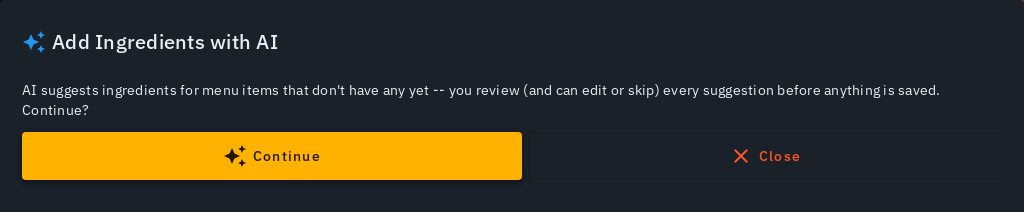
Open Menu and tap Add Ingredients with AI, beside Upload Menu Photo. Then tap Continue. The whole-menu flow suggests ingredients for items that do not have any linked yet. It leaves dishes with existing ingredient links alone.
A progress bar appears in the review sheet and at the top of Menu. The work runs on Biller.app's servers even if you close the tab. A push notification tells you when the suggestions are ready.
Suppose your menu has plain rice, dal and paneer curry. Review each included dish as its own recipe. An amount that makes sense for rice says nothing about the amount needed for dal. Check the plate size and the ingredient list for each dish.
If AI cannot suggest a dish with enough confidence, that dish appears separately with a reason. It is not silently dropped. Read those reasons before treating the run as complete, and plan to handle the unresolved dishes separately.
What should you check before pressing Add to N dishes?
Look at each suggested ingredient and its amount. You can edit an amount, remove an ingredient with its close icon, or untick a dish to skip it. Use those controls when a recipe differs from what your kitchen makes.
For example, a suggested ingredient may belong in a rich version of a curry but not in your regular recipe. Remove that ingredient rather than keeping it for the sake of a complete-looking list. If the whole dish needs more thought, skip it.
Amounts use small units suited to a plate. Below 1000, the suggestions use grams or millilitres; at or above that point, they use kg or litre. Check the unit as well as the number before accepting an amount.
Once the included dishes look right, tap Add to N dishes. Saving also keeps running if you close the tab, with a push notification when done. Starting the review and saving the links are distinct steps.
The summary shows items updated, items already linked and left untouched, and new inventory items created. It also names any dish that failed so you can retry it. Read the summary instead of assuming every selected dish was saved.
Can you close the review and return without paying again?
Yes. Closing the review sheet before adding does not lose the suggestions you already paid for. Menu shows Ingredient suggestions ready in its top bar. Running & recent also shows the work as Ready to review.
The attention card offers Review suggestions without a price because those suggestions are already paid for. Open that saved review when your cook is available. You can also tap Discard if you decide to let the suggestions go.
Run again is different. It starts a new run and charges credits again. If you only want to inspect the saved paneer curry suggestion, choose Review suggestions. Do not use Run again as a way to reopen the existing review.
Can you start with one dish or a small selection?
An item's edit form shows Suggest ingredients (AI) when that item has no ingredients linked. You review the result inline, then choose Add Ingredients or Cancel. This gives you a small place to begin without reviewing the whole menu.
You can also tick a few items on Menu and use bulk Update. It offers the same Add ingredients with AI flow for just that selection. A rice-and-dal selection can make the first review easier to discuss with your kitchen team.
Pick a scope your team can check carefully. A whole-menu run suits a planned recipe review; one item suits a focused check. In either case, accepting the suggestion still needs your judgement about the actual dish.
Does accepting a recipe mean the stock count is correct?
No. Ingredients are inventory items, but a new item's opening stock is still an estimate. Newly created ingredients start with a rough, non-zero amount and carry an Estimated -- tap to correct badge. Treat that badge as work still to do.
Confirm the amount through Inventory by logging a purchase or tapping the badge. For example, a suggested rice link can be useful while the rice stock estimate still needs correction. A recipe amount and the stock on your shelf answer different questions.
Read the automatic inventory management guide for that follow-up. First check how much one plate uses. Then check the stock you actually hold. Do not treat the AI estimate as a physical count.
AI sees your existing inventory first so it can reuse items you already have, such as Atta, rather than inventing near-duplicates such as Wheat Flour. Still read the names during review. Your team needs to recognise the items it will track.
Which recipe details still need manual attention?
Spice ingredients are excluded from AI suggestions and remain manually tracked. For a dal recipe, an AI list without spices is therefore not a full account of every ingredient your kitchen uses. Keep that limit in view during recipe review.
The feature is additive only. An item that already has ingredients is left alone, and an existing recipe is never overwritten. If a linked dish changes in your kitchen, do not expect this flow to replace its current recipe automatically.
Asking for the same dish again uses the earlier answer rather than deriving it afresh. A differently named variant, such as a dish without ghee, gets its own fresh suggestion. Repeating a request is not a promise of a newly worked-out recipe.
Consider a cook who wants to compare the regular dish with a no-ghee variant. The help guide distinguishes those names, but neither answer removes the need to check the recipe. The kitchen remains the source for what goes into each plate.
How much does a fresh ingredient suggestion cost?
Each dish costs one Biller credit from the same wallet used for bills. A run of 20 dishes costs 20 credits before any applicable refunds. These are feature charges in credits, not a rupee price for the recipe.
A dish AI cannot derive is refunded automatically. So is a dish served from the earlier-answers store, shown with a cache badge. You pay for fresh AI answers. A refund does not mean a missing recipe has been completed.
The cost appears on Add with AI and Run again. One tap starts the action, with no second confirmation. Check the shown cost before tapping, especially if your intention was only to reopen a saved review.
The credit ring in the top bar updates after each run. The Biller credits guide gives the related wallet context. Keep the recipe review and the credit charge separate in your mind: paying does not make a suggestion correct.
What do owners ask before their first run?
Will AI overwrite my existing recipes?
No. Items with ingredients already linked are left untouched. This flow adds links for dishes without them.
Are suggested stock amounts verified counts?
No. New ingredients start with a rough, non-zero estimate. Confirm it through Inventory by logging a purchase or tapping the estimate badge.
Are spices included in the suggestions?
No. Spice ingredients are excluded from AI suggestions and stay manually tracked.
Do I need another paid run to reopen a review?
No. Use Review suggestions for the saved result. Run again starts a new run and charges credits again.
Where should you begin?
Choose one familiar dish and have its cook review the suggested amounts. Check the saved result and correct any estimated stock before expanding to more dishes. Start billing free, no signup to begin exploring Biller.app.
Who this is for: Indian SMB owners, from a single counter to multiple outlets, running restaurants or shops. Biller.app is free to start with 510 Biller credits once, no card. A plain bill costs one credit, and credits never expire.