 ILLER
ILLERHelp
Discounts
Biller supports two kinds of discount, applied to a whole bill (not individual items): a percentage off (e.g. 10% off) or a flat amount off (e.g. Rs. 50 off). You first define named discounts for your outlet, then apply one from the billing screen when you need it.
Creating a discount
- Go to Outlet in the admin side bar.
- Under Discounts, tap New Discount.
- Fill in:
- Discount Name -- e.g. "Festive 10% off", "Flat 50 off". This is the name that shows up on the bill and the printed/customer receipt once applied.
- Type -- Percentage or Flat amount.
- Value -- the percentage (e.g.
10for 10%, capped at 100) or the flat rupee amount (e.g.50). - Active -- only active discounts can be applied to a bill; toggle one off to retire a past promotion without deleting its history.
- Tap Add.
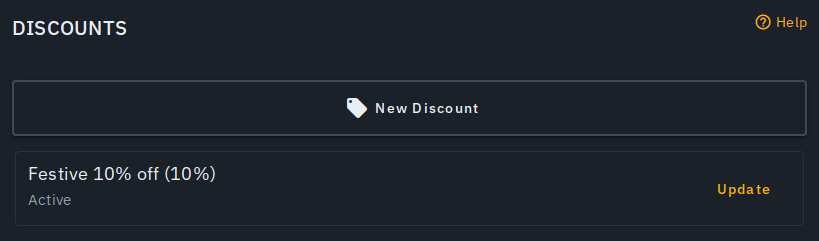
Each discount you create appears as a card, showing its name, value and whether it's active. Tap Update on a card to change it, or to delete it.
Applying a discount to a bill
- Open a bill on the billing screen.
- In the bill summary, next to Discount, tap Apply (or Change if one is already applied).
- Pick one of your outlet's active discounts, or No discount to clear whichever one is currently applied.
- Tap Apply.
The bill's total updates immediately -- tax is computed on the post-discount amount, matching how the total is charged. Once applied, a discount is locked in for that bill: editing or deleting the discount definition afterwards (from Outlet settings) never changes a bill's total retroactively.
Notes
- Discounts apply to the whole bill, not individual items -- there's no per-item discount today.
- A discount can never take a bill below Rs. 0 -- an oversized percentage or flat amount is automatically capped at the bill's subtotal.
- Applying a discount is available to admins, cashiers and waiters; only admins can create, edit or delete discount definitions.
- The discount line shows up on every receipt surface -- the billing screen, the customer's digital bill, the printed receipt and the thermal print-out -- consistently.