Restaurant vs Shop Billing: What Changes and Can You Switch?
Published
Choosing shop billing changes more than a label: it removes the kitchen workflow, keeps a single counter, and asks you to confirm tax for each item.
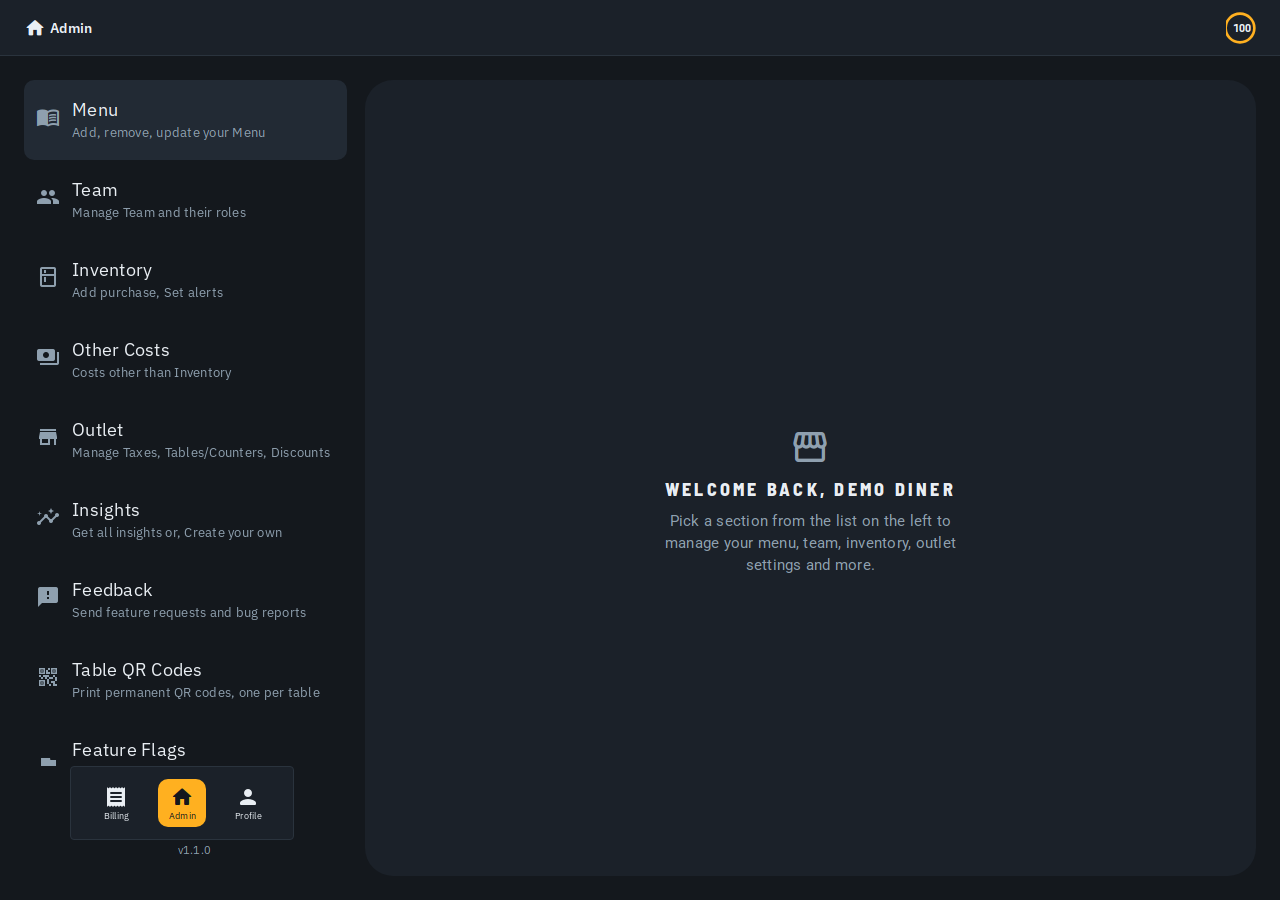
A restaurant owner and a stationery shop owner may both need quick bills. Their teams still need different screens. Before choosing a business type in Biller.app, check how orders move through your own outlet.
The key limit comes first: the saved answer to What do you sell? is set once and cannot be changed later. This is a setup choice, not a daily switch between restaurant and shop billing.
Can you switch from restaurant mode to shop mode and back?
The shop help guide says you cannot change the business answer later yourself. If you chose the wrong answer on day one, write through Feedback for help. It does not promise an instant conversion or a switch-back button.
Suppose you picked a restaurant setup while exploring, then realised you need a shop counter. Do not hunt through the Mode menu for a Shop option. Ask for help with the saved business choice and explain what you actually sell.
There is one earlier choice in the no-signup flow. Its first Finish asks for your outlet name and a Restaurant / Shop choice. A suggested first item may preselect that choice, but you can still tap to change it there.
That early choice does not establish a right to change a saved outlet later. Read the shop billing guide before committing your setup. Keep a wrong-answer request separate from routine screen navigation.
What changes when you choose shop billing?
During setup, What do you sell? offers Everything else for a shop, store, counter or service. Choosing it gives you a product built around a counter. The setup also drops the tables and counters step.
The catalog screen is called Items. Adding an item asks for a name and price, without dish descriptions, veg or non-veg types, or recipes. For a notebook priced at ₹60, start with the product name and its selling price.
Billing uses one quick counter: pick items, take payment, and finish. There are no table screens, kitchen queue or waiter handoffs. This makes the choice more substantial than renaming Menu to Items.
A shop owner should picture the whole working day before choosing. If staff need to pass orders to a kitchen, that need deserves attention during setup. A simple counter screen does not provide the kitchen workflow described for restaurants.
Which team roles are available for a shop?
The shop guide lists seven roles: Admin, Manager, Godown Manager, Staff Manager, Cashier, Delivery and Accountant (CA). Kitchen and Waiter roles do not exist for a shop. Staff should be assigned from the shop's actual role list.
For example, a store with a sales counter and a stock room can see Cashier and Godown Manager in that list. It should not plan a kitchen login as a substitute for stock work. The business choice shapes which roles exist.
The list alone does not explain every permission each role carries. Do not infer that a role can change prices, export records or manage taxes merely from its name. Check the relevant help before assigning work that needs those rights.
How is tax handled for shop items?
The guide contrasts the usual restaurant bill-level rate with shop tax set per item. A shop can sell goods across several rates. Each item's tax must be confirmed before that item can be billed.
Start with the Review now reminder. Opening the review screen spends nothing. Check N items is the paid action: the button shows a cost of one Biller credit per item for AI tax suggestions.
Items already suggested are not charged again. The suggestions appear together, grouped by the suggested rate. Read those groups before accepting them; a suggestion is there for you to review, not a reason to skip the check.
Use Change to fix a whole group, or Set for the group AI could not place. You can open a group and pull out a single item that needs another rate. Then tap Confirm all.
Imagine a small store reviewing notebooks, chargers and headphones. A group may need one correction while another item needs its own check. Do not assume that products sold across one counter must all have the same rate.
The Items reminder stays until the one-time tax review is done. Once confirmed, bills split taxes by rate and GST reports pick up those figures. This guide explains the product steps; it does not choose a legal tax rate for your goods.
What does Taxes & charges show after that review?
The page shows one row per confirmed rate, with the item count beside it. It also shows an unrated row for items still awaiting review. That row is a useful cue to finish the work before trying to bill those items.
For example, a rate row may group many products while a small unrated group remains. A mostly finished catalog is not the same as a fully reviewed one. Check which items are left rather than assuming the first review covered everything.
The How you price card also applies to shops. It decides whether a new item's price already includes GST. It does not change any item you have already priced, so changing that card is not a bulk correction for existing prices.
If you entered a notebook at ₹60 yesterday, do not expect today's pricing choice to rewrite that item's price treatment. Review existing entries separately when checking your setup. Keep the new-item default and saved item details distinct.
What happens if you added items or counters before answering?
You can visit Items or Outlet before reaching the business question. The shop guide explicitly covers answering Everything else afterwards. You still get the shop product, with a single shop counter replacing the counters you had set up.
Anything that routed to a kitchen has to go because a shop has no kitchen to route to. Treat this as a real setup consequence. Do not build a detailed kitchen routing plan while leaving the business answer undecided.
Your own items are kept. Anything you typed or edited stays as you left it; only untouched demo dishes are cleared away. For example, an item you entered for your own store belongs to the kept group.
This covers finishing the business question after early exploration. It does not describe converting a fully configured outlet back and forth. The guide gives no promise about migration timing, support steps or restoring earlier counters after a wrong choice.
Is the Mode menu a restaurant and shop switch?
No. The navigation and switching modes guide describes views such as Cashier, Kitchen and Kitchen wall. Admins use that menu on the billing screen to move between those views without logging out.
Kitchen and Kitchen wall appear only once the outlet has a kitchen. If every bill type is Quick bill, the menu offers only Cashier. Switching a bill type off Quick bill brings the kitchen options back immediately.
A restaurant taking only counter orders can therefore have no kitchen option showing. That alone does not prove it became a shop. Check the bill-type setting and the saved business choice as separate questions.
Likewise, changing from Cashier to Kitchen changes the working view. It does not change the answer to What do you sell? Teach staff this distinction before they try to solve a setup mistake through navigation.
What should you check before saving your choice?
Write down what your team needs: a single sales counter, table service, kitchen handoffs, and who handles each task. Then compare those needs with the documented shop limits. A mixed business deserves a careful check before choosing.
For a shop, plan time to review item tax before the first sale. Check whether your entered prices include GST and which items still need confirmation. A ₹60 item that cannot yet be billed needs its review completed, not another name.
If you picked incorrectly, use Feedback and describe the original choice and intended setup. The documentation directs you there for help. It does not state a guaranteed response time or promise that all saved settings can be converted automatically.
What do owners ask about the business choice?
Can I change a saved shop outlet back to restaurant myself?
The guide says the business answer is set once and cannot be changed later. Contact the team through Feedback if the original choice was wrong.
Does opening the tax review spend credits?
No. Opening Review now spends nothing. Check N items starts AI suggestions at the displayed cost of one credit per item.
Will choosing Everything else delete my own items?
The guide says typed or edited items are kept. Only untouched demo dishes are removed, while counters are replaced by the single shop counter.
Why is there no Kitchen option in my restaurant view?
If every bill type is Quick bill, the kitchen views are hidden. That is separate from changing the outlet's business type.
Where can you try the billing flow?
Use a familiar item and check the business choice shown during setup. Read the limits before saving an outlet that your staff will use. Start billing free, no signup to explore the first bill.
Who this is for: Indian SMB owners running restaurants or shops, from a single counter to multiple outlets. Biller.app is free to start with 510 Biller credits once, no card. A plain bill costs one credit, and credits never expire.