What Push Notifications Actually Alert You To on Biller.app
Published
A missed kitchen update can leave the counter waiting for food that is already ready. Biller.app can send order and bill alerts to your phone, browser or desktop, but each device has rules worth understanding before a busy shift.
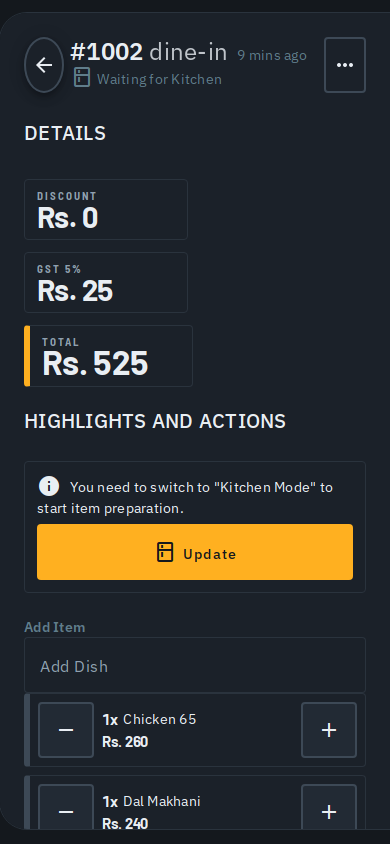
What events can Biller.app alert you about?
The help guide describes alerts when a bill is created, a table is waiting on the kitchen, food is ready, or a bill is settled. Each alert shows the table or counter and what changed. That gives the person receiving it a useful starting point.
For example, an alert might say Table 4 is waiting for Kitchen, Table 4 Delivered, or Table 4 completed with ₹420. These are examples of the message format. The amount belongs to that bill; it is not a promise about sales or a measure of staff performance.
Tapping an alert opens the app on the matching screen, subject to the desktop exceptions below. An alert helps you find the bill that needs attention. It does not replace checking the order itself before preparing food or handing a receipt to a guest.
Keep the order notifications help guide handy when setting up a shift phone. Work through the device you will actually use. A browser on a laptop and an Android phone do not share the same permission steps.
Who gets alerts for a restaurant outlet?
Alerts follow the outlet you are signed in to and the work your role covers. Kitchen staff get preparation alerts. Admins also get daily sales summaries. Do not assume that every person on the team receives every message the owner sees.
Consider a shared kitchen phone and the owner's personal phone. The kitchen phone should receive alerts for the signed-in kitchen staff member's role. The owner should check their own signed-in outlet and role. A missing sales summary on a kitchen account is not evidence that all alerts have stopped.
If you manage several outlets, switching from the top bar moves that device's alerts to the new outlet immediately. One device receives one outlet's alerts at a time. It follows the outlet currently selected, rather than acting as an all-outlet alert feed.
For example, switching from your cafe to your second outlet changes what reaches that phone. Before leaving the cafe counter, check which outlet is selected. Do not plan to supervise both outlets from the same device's push feed at once.
What happens when you first turn alerts on?
Before the phone or browser asks for permission, Biller.app shows a short explanation. It describes new orders, kitchen tickets and bill updates. Tap Turn on to bring up the real permission prompt immediately. Tap Not now to leave without being asked.
The introduction appears once in the same way on Android and the web. On Android, the next prompt asks whether Biller may send notifications. Tap Allow and the device enrols itself for the outlet's alerts. This is the permission that lets the app deliver them.
On the web, the browser asks for permission once after Turn on. After that, the alerts arrive as browser notifications, including when the tab is closed. For a counter laptop, test this setup before relying on it during service.
Choosing Not now is different from refusing the real permission prompt. Nothing has been asked or denied at that point. Biller.app offers the introduction again after a couple of weeks. You can also turn alerts on earlier from the bell in the top bar.
How do you fix an Android permission refusal?
If you tapped Don't allow on the actual Android prompt, Android will not ask a second time. The bell therefore stops offering a Register button. Repeatedly opening the bell cannot make that blocked prompt useful.
Open your phone's Settings, then Apps, Biller and Notifications. Turn notifications back on there, then reopen the bell. This is a phone setting change, not another tap on the introductory screen. Give staff this distinction when handing over a device.
For example, a cashier who chose Not now can use the bell later. A cashier who denied Android permission must use phone settings. Asking which button they pressed is a better first step than treating both cases as the same fault.
Can the installed desktop app alert you with its window closed?
On Windows, Mac or Linux, the installed Biller.app registers the computer when you first sign in from its window. There is no extra switch to turn on. Desktop alerts use the same title and text as Android, even when the Biller window is closed.
The app must still be running, with its icon in the tray or menu bar. If it is not running, no desktop alert can reach that computer. Closing the window and stopping the app are therefore different situations for a counter team.
That window receives either desktop alerts or browser alerts, never both. Registering the computer turns off browser alerts only for the Biller.app window. Your phone and other browser keep theirs. This avoids a duplicate pair from that window without silencing all your devices.
Windows shows a toast under the Biller.app name. If it cannot draw the toast, it shows a balloon from the tray icon instead. When a normal desktop alert supports opening the bill, clicking it takes you there.
On Mac, Biller.app is not yet signed with an Apple certificate, so macOS may not authorise its notifications. A plainer alert then appears. Clicking that fallback does not open the bill; open Biller from the menu-bar icon.
Linux needs notify-send, which is installed on most desktops. Its alert shows what happened, but clicking does not open the bill. Use the Biller.app tray icon instead. Check this with the person at the counter so they know where to go.
Can you mute the sound without losing the alert?
Open the bell and switch on Silence notifications. Alerts still arrive and still badge the bell. Only the alert sound is muted. This setting applies to the device where you changed it, rather than every device used by your team.
While Biller.app is open, a new alert also appears as a toast. It closes after five seconds and stays unread in the bell. The toast offers Tap to enable sound for an optional chime. Nothing plays until you tap that button.
For a quiet service area, muting sound can keep the device less disruptive while leaving a visible cue. Tell the next person to check the bell. A toast that has disappeared is not the same as an alert that has been read.
What should you check when alerts stop arriving?
Start with sign-in and the selected outlet. Signing out removes that device from the outlet's alert list on purpose. This stops the next user of a shared phone receiving your orders. Sign back in and alerts resume.
A computer also shows alerts for one person at a time: whoever is signed in through the Biller.app window. Signing out or switching outlet stops the previous alerts. The next person to sign in gets alerts for their own outlet and role.
Removal from the team stops alerts for that outlet immediately. Reinstalling the app or clearing its data requires opening it and signing in once so it can enrol again. On desktop, also check that the app is still running.
Use a simple handover check: correct person, correct outlet, allowed permission and running desktop app where relevant. Then look at the bill itself. The making a bill guide explains the separate steps that move an order through billing and the kitchen.
Try the counter flow yourself: start billing free, no signup. Treat alert setup as part of the device handover, so the person receiving a message knows which outlet and bill it belongs to.
Frequently asked questions
Can one phone receive alerts for all my outlets?
No. A device follows the outlet currently selected in the top bar and receives only that outlet's alerts.
Does Silence notifications hide the alerts?
No. Alerts still arrive and badge the bell; only the sound is muted on that device.
Will desktop alerts work if Biller.app has stopped running?
No. The desktop app must be running in the tray or menu bar, even if its window is closed.
Does Not now deny permission?
No. It skips the permission request. You can use the bell later, or wait for the introduction to be offered again.
Who this is for: Indian restaurant and shop SMBs, from a single counter to several outlets. Biller.app is free to start: 510 Biller credits once, no card. A plain bill costs one credit, and credits never expire.