What the AI Insights Dashboard Actually Tells You (and What It Needs to Say Anything Useful)
Published
The Insights screen in Biller.app opens with a short plain-English summary of how your outlet is doing, so you can read the day in under a minute.
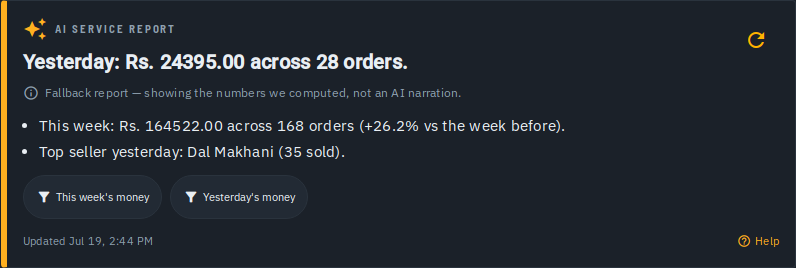
Most owners do not want another dashboard full of lines and bars. They want someone to say, "Here is what stood out today." That is what the digest at the top of Insights tries to do.
But a summary is only as good as the data behind it. This post explains what the digest actually shows, what it costs, where it stops, and what your outlet needs to feed it before it says anything useful.
What does the AI digest on the Insights screen show?
At the top of Insights sits a daily digest, kept per outlet per day. Opening the page is free and shows the numbers as a labelled fallback report; tap Explain with AI (1 credit) and the AI writes it up. Nothing is generated overnight. It starts with one headline sentence. Under it are a few bullet points calling out what stood out, such as what sold and how sales moved.
The language is plain English, not a wall of raw numbers. Say your butter chicken at ₹180 outsold everything else this week. The digest is meant to say that in a sentence, so you do not have to dig through a table to find it.
Depending on what is enabled for your outlet, you may also see a "What to do" section. It gives a couple of concrete suggestions, plus filter chips you can tap to jump straight to that slice of the data below.
One honest note: the "What to do" suggestions and the digest language switcher are being rolled out gradually. You may not see them on your outlet yet.
Is the AI digest a separate set of numbers?
No. The digest and the charts read the same underlying data. The digest is a narrated version of those numbers, not a second source of truth.
This matters when two screens seem to disagree. They should not. If the sentence at the top says sales moved and the chart below shows something different, treat that as worth checking, not as two valid answers.
Every digest ends with the line "AI-generated — verify before acting." Take that literally. Use the digest as a fast first read, then confirm against the charts or the Sales report before you change a menu price or reorder stock.
What happens when the AI summary cannot be generated?
Sometimes the AI narration cannot be produced. In that case the digest does not pretend. It falls back to a clearly labelled "Fallback report" built from the same underlying numbers.
You can spot it by the fallback badge. It is still accurate, because it comes from the same computed stats. It just lacks the written, conversational layer on top.
This is a useful design for a busy counter. You never have to wonder whether a polished paragraph was written by the AI or assembled from raw figures. The label tells you which one you are reading.
How much does the digest cost, and when is it free?
The AI-written digest costs 1 credit. It is metered to at most once an hour. If you reopen the page, or tap a suggested filter chip within that hour, you reuse the digest that was already generated, at no extra charge.
There is also a refresh icon to regenerate the digest on demand. It is cooldown-limited. If you tap it too soon, you get a message telling you when you can try again.
Everything else on the page is always free. That includes the charts, the Sales report tab, and any date range you pick. So the only thing that spends credits here is the written summary.
If you do not want to spend credits on narration at all, switch it off from Outlet, then AI & messaging spend. You will still see the same plain numbers as the Fallback report. For more detail, see the AI insights help article.
What do the Money, Customers and Kitchen cards tell you?
Below the digest, Money, Customers and Kitchen each get their own card. Pick a range such as Today, Week or Month, and the card shows a trend line. It also shows a growth indicator: up, down or flat compared with the previous period.
Where there is enough sales history, a dashed line projects the next few periods. It is a simple moving average drawn next to the real data. It is a plain projection, not a promise.
If your outlet does not have enough history yet, you see a note instead of a projection. That is deliberate. An unreliable forecast is worse than none, so a new outlet will simply wait for the line to appear.
What does the Sales report tab add?
The Sales report tab is where you go when you need exact figures. It gives a day or month table of every completed bill. Each row shows the subtotal, the discount and the tax split: CGST, SGST, IGST, other tax, round-off and gross.
These are the same figures the emailed and exported tax reports use, so the two can never disagree. If you want to sanity-check a tax line, the GST calculator is a handy companion.
A payment modes section shows how much came in as Cash, Card, UPI and Due for the selected range, with a bill count for each. Imagine a day with 120 bills. You can see at a glance how many were settled by UPI and how many were left as Due.
Tap a row to drill down to the bills behind it, and each bill shows its payment mode. Tap a bill to open it. You can filter by date range, bill type or payment mode, and use Export for a CSV or PDF copy.
If discounts look high on a given day, the drill-down is where you find which bills carried them. Our discounts guide explains how those are applied at billing.
What does the Insights screen need before it says anything useful?
The digest cannot invent what it has never seen. It summarises the bills you have actually completed. So the first requirement is simple: bill every sale through the app, every day.
If half your orders are written on paper and never entered, the digest describes only the half it can see. It will read confidently and still be incomplete. That is a data problem, not an AI problem.
The second requirement is history. The projection line needs enough past sales to be reliable, and new outlets see a note until then. Give it a few weeks of steady billing before you judge the trends.
The third is consistent payment modes. If cash sales are sometimes rung up as UPI to save time, the payment modes section will mislead you. Record it the way the money actually came in.
Finally, remember the limits. The digest is a first read, not an audit. It will not replace your own judgement about a slow Tuesday or a festival week.
How do you use it in a daily routine?
A simple routine works well for a busy owner. Open Insights once in the morning and read the headline and bullets. That takes under a minute.
If something stands out, tap a suggested filter chip, where you see them, to jump to that slice. Since reopening within the hour reuses the same digest, you are not paying again for every tap.
Then check the relevant card or the Sales report to confirm the number before acting. Use the digest to decide where to look, and the numbers to decide what to do.
The first time you open the page, a short guided tour walks you through the digest, a card's overview, its timeframe picker and the other cards. It shows itself once. To see it again, open the "..." menu and pick Show walkthrough.
Try it on your own bills
The best way to judge the Insights screen is to put a few days of real bills through it. You will quickly see whether the headline matches how your counter felt.
You can start billing free, no signup and look at Insights once a day's sales are in.
Who this is for
Biller.app is built for single-counter to multi-outlet businesses in India, restaurants and shops alike. It is free to start: you get 510 Biller credits once, with no card needed. A plain bill costs one credit, and credits never expire.
FAQ
Does the AI digest cost credits every time I open Insights?
No. The digest costs 1 credit and is metered to at most once an hour. Reopening the page or tapping a suggested filter within that hour reuses it for free.
Can I turn the AI summary off?
Yes. Turn it off from Outlet, then AI & messaging spend. You will still see the same plain numbers as the Fallback report, just without the AI-written summary.
Why does my card show a note instead of a projection?
Your outlet does not have enough sales history yet. Rather than draw an unreliable line, the card shows a note until enough history exists.
Is the Fallback report less accurate?
No. It is built from the same computed stats as the AI digest. It only lacks the AI narration on top.
Can I export the Sales report?
Yes. Use Export on the Sales report tab for a CSV or PDF copy. You can filter by date range, bill type or payment mode first.