Packaging Charges in Biller.app: Containers, Percentages and GST
Published
A parcel order may need two small boxes and one large box. Recording that choice on the bill keeps the charge clear for staff and customers.
What does a packaging charge do in Biller.app?
Biller.app lets you add packaging to a whole bill using named container presets or a percentage. You choose the charge while billing, before completing the bill. It is not a fixed choice made in advance for every order.
For example, a takeaway meal might need a small box for rice and a large box for a curry. Another order might need no packaging at all. The billing choice should reflect the containers used for that particular order.
The product adds an applied packaging charge to the taxable amount. It is taxed the same as the rest of the bill, as described in the packaging help article. This guide explains that product behaviour; it does not prescribe a tax rate for your business.
How do you create container presets?
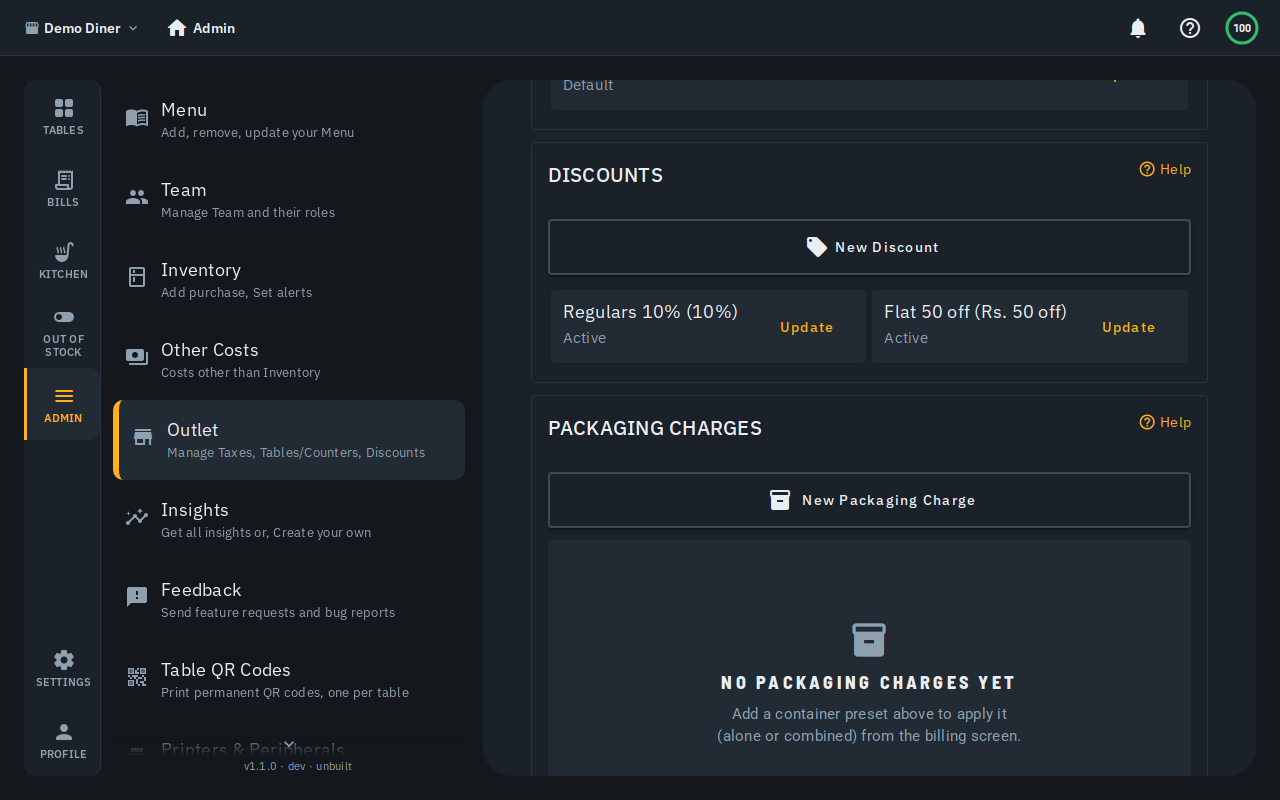
An admin can open Outlet › Packaging charges in the admin side bar. Under Packaging charges, tap New packaging charge. Enter a preset name and the flat rupee amount for one container, then tap Add.
Use names that your counter team can recognise quickly, such as Small box, Large box or Foil container. These are also the names customers see on the bill and receipt. A short, clear name helps staff choose the right box during a busy shift.
Suppose a Small box costs ₹10 and a Large box costs ₹15. Create each as its own preset with its own amount. These figures are examples of preset prices, rather than a price list supplied by Biller.app.
Each preset appears as a compact row with its name, amount and active state. Tap Update on that row to change it or delete it. Only active presets can be applied to a bill, so check this state when a container is missing.
How do you apply several containers to one bill?
Open the bill on the billing screen. Next to Discount in the bill summary, tap Packaging. If a charge is already present, the control reads Change packaging. This is where you select the containers needed for the current order.
Tap a preset to add one container. Use the plus and minus stepper next to it to change the quantity. You can choose several different presets on the same bill, rather than limiting the order to one kind of box.
For an order with two Small boxes at ₹10 each and one Large box at ₹15, the container charges total ₹35. Check the quantities against the packed order. Then tap Apply to save that selection and update the bill total.
This is useful when different dishes need different containers. The containers still form one charge on the whole bill. They are not linked to individual menu items, so staff should count the actual boxes instead of expecting the app to choose them from dishes.
When would you choose a percentage instead?
The same selector has an or % of bill field. Enter a percentage there instead of choosing containers. This provides another way to set the charge when your outlet uses a percentage policy rather than counting each type of box.
The two modes cannot apply together on a single bill. Choosing a percentage clears the containers you selected. Choosing a container clears the percentage. Check the final choice before tapping Apply, especially if you change your mind partway through the order.
For example, a staff member might start by selecting a Small box, then decide the order should use the outlet's percentage policy. Entering the percentage replaces that container choice. It does not add a second packaging charge on top of the first one.
If you want no packaging charge on the bill, use Clear. This removes the current selection. Checking the summary after applying or clearing is a simple way to catch an unwanted charge before you finish billing.
What happens to the taxable amount and the receipt?
Once packaging is applied, the bill total updates immediately. The packaging amount joins the taxable amount and receives the same tax treatment as the rest of that bill. You do not need to add a second manual packaging tax as part of this workflow.
Keep the scope of this feature clear: the source documents packaging charges. It does not describe a separate delivery fee workflow. A delivery order may need packaging, but this guide does not treat a container preset as a substitute for an undocumented delivery feature.
The packaging line appears on the billing screen, the customer's digital bill, the printed receipt, the thermal print-out and the GST tax invoice. The label describes what was applied. A container choice can read Packaging (2x Small box, 1x Large box).
A percentage choice is labelled with the selected percentage, such as Packaging 5%. Look for that label when checking the receipt. It gives the customer a clearer explanation than a box charge that exists only in a staff member's notes.
The packaging charges help article shows the setup and billing steps. Keep it available while training staff so they can check the names of controls rather than relying on memory.
What stays fixed when you edit a preset?
An applied packaging charge is locked in for that bill. Editing a preset's price afterwards does not change the bill total retroactively. Changing the percentage choice later also does not rewrite a bill that already carries its applied charge.
For example, an admin may raise the Small box preset from ₹10 to ₹12 after a supplier price change. That edit should not be read as an instruction to recalculate past bills. The old bill retains the charge that was applied to it.
If you stop stocking a container, you can turn off its Active state. Only active presets are available to apply, while past bills retain their own charges. Review the active list when your packaging stock changes so staff see choices they can actually supply.
What should staff check during a shift?
Before opening, confirm that the preset names match the containers at the counter. During packing, count the boxes for the order. Before completing the bill, check the applied mode, quantities and visible packaging label.
Admins, cashiers and waiters can apply packaging charges. Only admins can create, edit or delete the presets. This separates the daily billing choice from changes to the preset list and its prices.
For a new team member, practise one container order, one mixed-container order and one percentage choice. Also practise Clear. These examples cover the two charging modes and removal without suggesting that both modes can be combined.
Frequently asked questions
Can a bill use containers and a percentage together?
No. Selecting a percentage clears the chosen containers, and selecting a container clears the percentage. Use one mode for each bill.
Can packaging be attached to an individual dish?
No. The charge applies to the whole bill. Select the container combination and quantities needed for the order instead.
Can a cashier create a new preset?
Only admins can create, edit or delete presets. Cashiers and waiters can apply packaging while billing, alongside admins.
Will a price edit change an earlier bill?
No. The charge is locked in when applied to the bill. Later preset edits do not change that bill's total retroactively.
To try the workflow, start billing free, no signup. Open a bill, choose the packaging needed, and inspect the summary before completing it.
This guide is for restaurant and shop teams in India, from a single counter to multiple outlets. Biller.app is free to start, with no card required. A plain bill costs one Biller credit, and credits never expire.