How to Digitize Your Restaurant Menu With AI: Photo to Full Catalog in Minutes
Published
Typing out every dish, price and category from a printed menu into a new POS system is the single biggest reason restaurant owners put off switching software. AI menu scanning exists to remove exactly that friction — here's how it works and how to get a clean result on your first try.
What AI menu digitization actually does
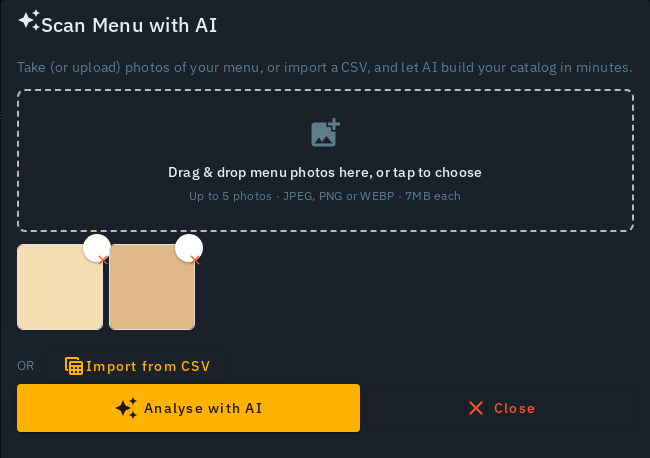
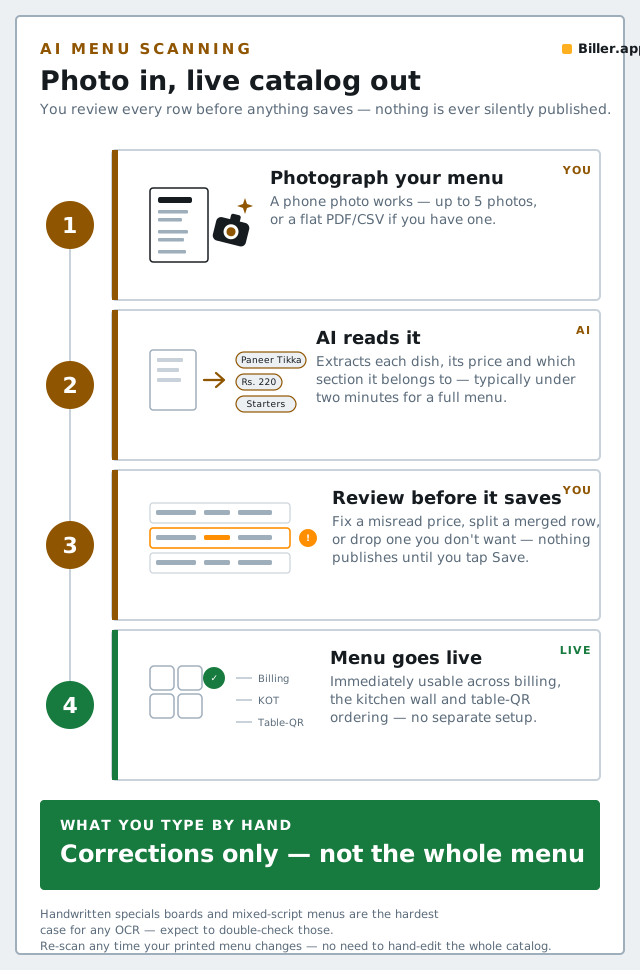
Instead of manually creating every menu item, you photograph (or upload a PDF of) your existing printed menu. The AI reads the image, identifies each dish, its price and which section/category it belongs to, and builds a structured, editable catalog for you — ready to review rather than ready to blindly trust.
Step by step
- Photograph or upload your menu. A phone photo works; a flat PDF export works even better if you have one.
- Let the AI read it. Items, prices and categories get extracted automatically — on Biller.app, this typically takes under two minutes.
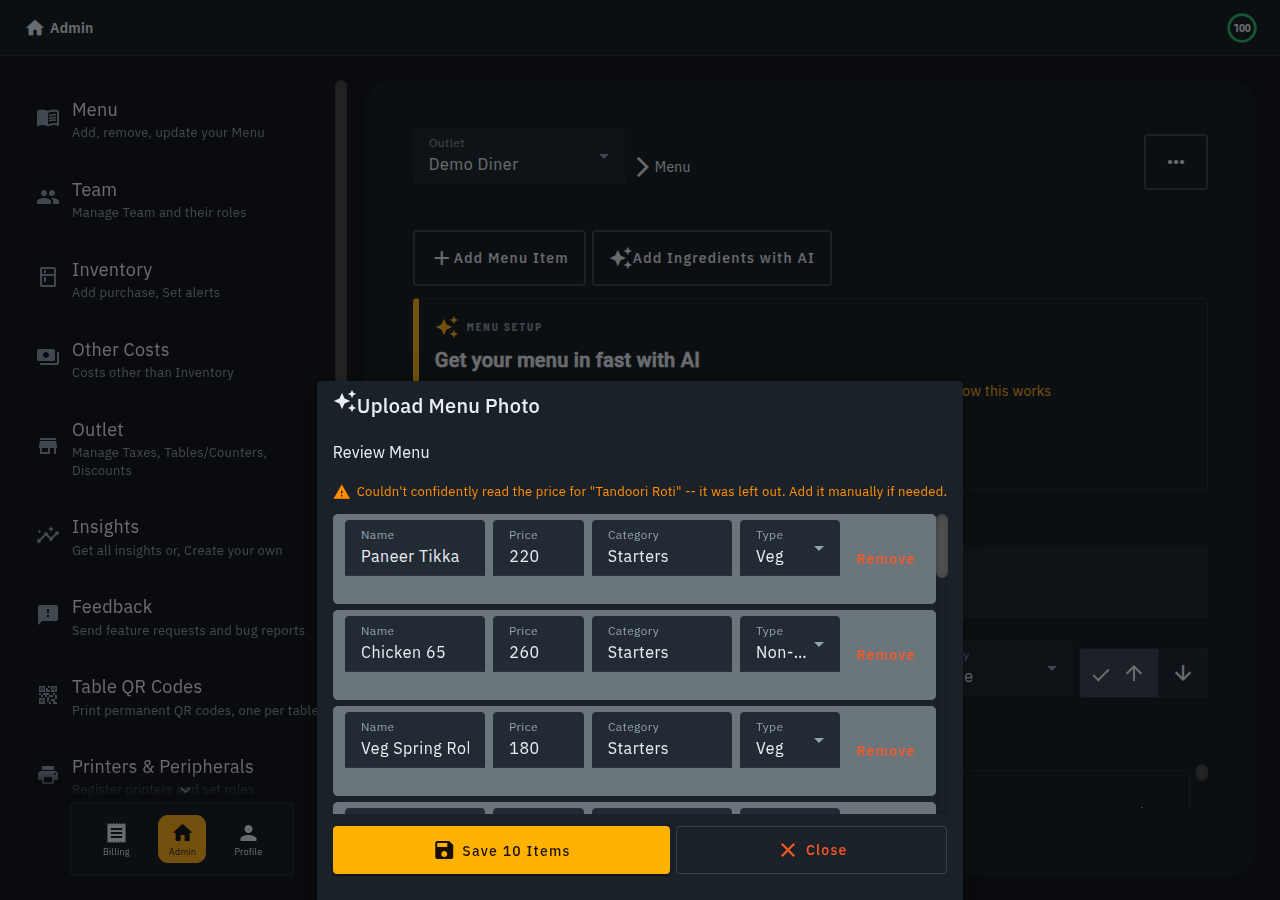
- Review before you publish. AI OCR is very good but not infallible with faded print, handwriting, or unusual fonts — always scan the review screen for a misread price or a merged/split item before you go live.
- Fill the gaps with AI generation. For any dish missing a description or photo, generate both automatically — each photo is generated once and reused, not regenerated (and billed) every time.
- Publish your catalog and it's immediately usable across billing, KOT and table-QR ordering.
Getting a clean scan on the first try
- Shoot in good, even light — avoid glare on laminated menus and hard shadows across the page.
- Keep the camera parallel to the page rather than at an angle, and fill the frame with the menu.
- Scan one page/section at a time for long or multi-column menus rather than one wide shot of everything.
- Handwritten specials boards are the hardest case for any OCR — expect to double-check those items manually.
Common questions
What if my menu has multiple languages or scripts?
Mixed-script menus (e.g. English alongside a regional language) are harder for any OCR system and are worth a manual review pass regardless of which tool reads them.
Does it handle variants like "Half / Full" or size-based pricing?
Multi-price rows are the most common place a first-pass scan needs a human check — confirm each price landed against the right variant before publishing.
Is this a one-time thing?
No — you can re-scan whenever your printed menu changes (a new seasonal item, a price revision) rather than hand-editing the whole catalog every time.
Why this matters more than it sounds
The real cost of "free" POS software is often the hours lost to manual data entry before you ever bill a single table. Cutting menu setup from hours to minutes is what actually determines whether you switch systems at all — not just whether the sign-up page says "free."